
How to download and install the app on iPhone
In this article, you will learn how to install Zoyya affiliate web app on iPhone. After adding it to the home screen, you can run it as a separate application, without opening the Internet browser.
When to use this option?
Use this option when:
- first time setting up Zoyya on iPhone
- want faster access to Zoyya
- want to use Zoyya as a separate app
Work steps
You can add the partner Zoyya web app to your home screen from multiple web browsers:
- Safari (newer look)
- Safari (Legacy)
- Chrome
Select the instructions below that correspond to the browser you are using.
1. Safari (newer look)
To download the app on your iPhone, follow these steps:
- Open Zoyya in Safari and sign in.
- If you are using the New Look Safari, tap the three dots at the bottom right of the screen, then tap Share, then More.
|
|
|
|---|
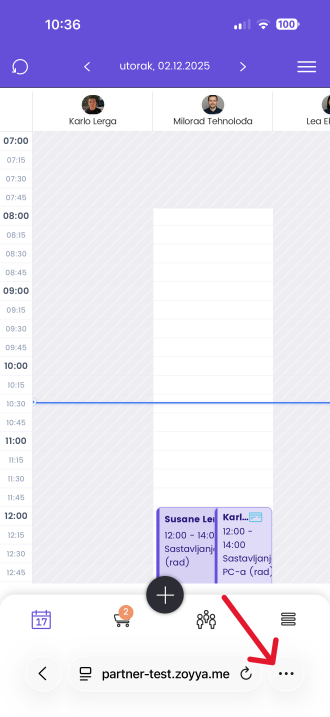
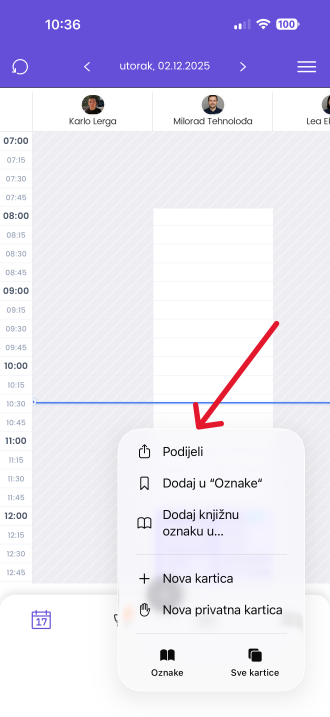
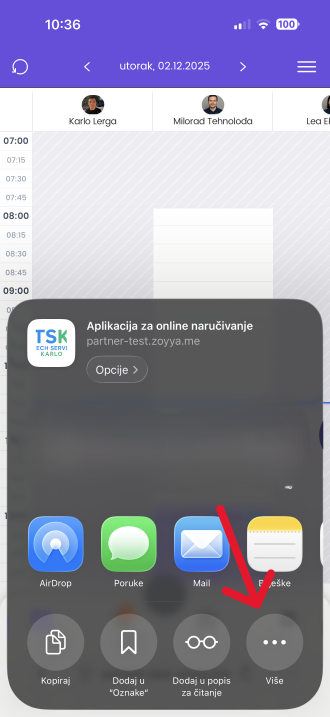
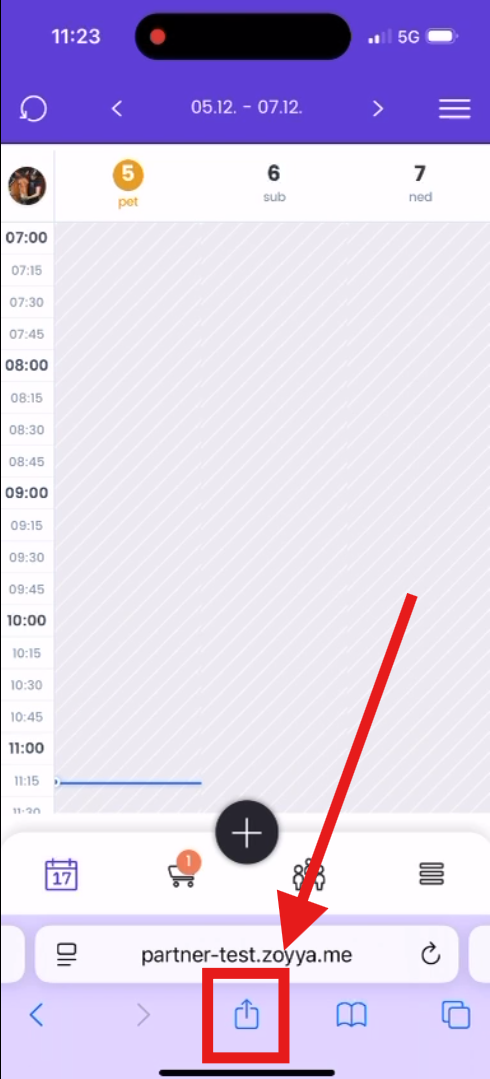
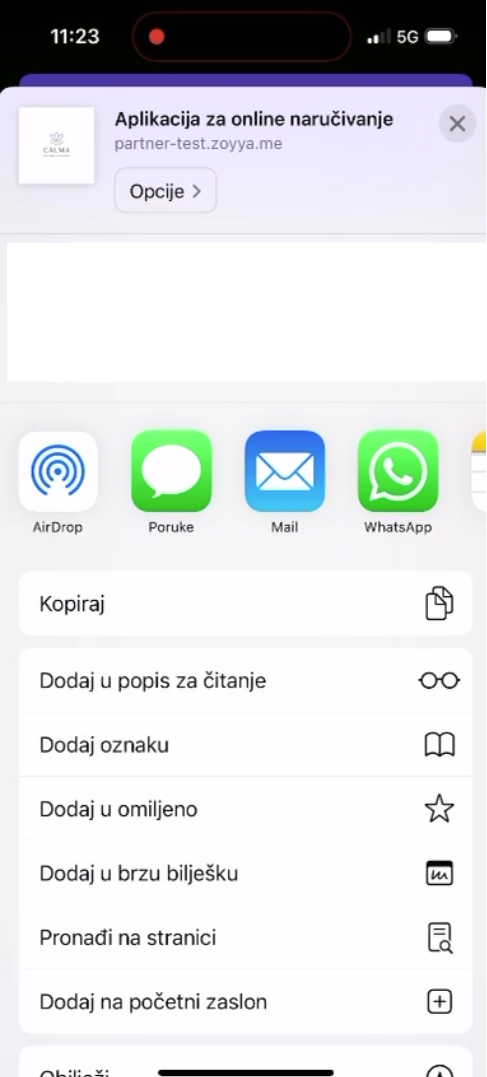
- If you are using Late Safari, tap the Share button at the bottom of the screen and scroll down the menu that appears.
|
|
|---|
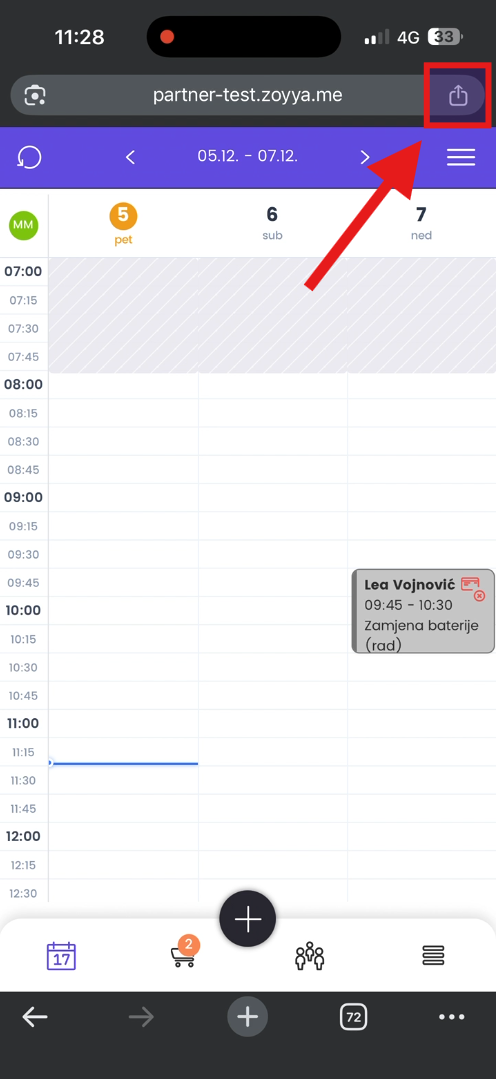
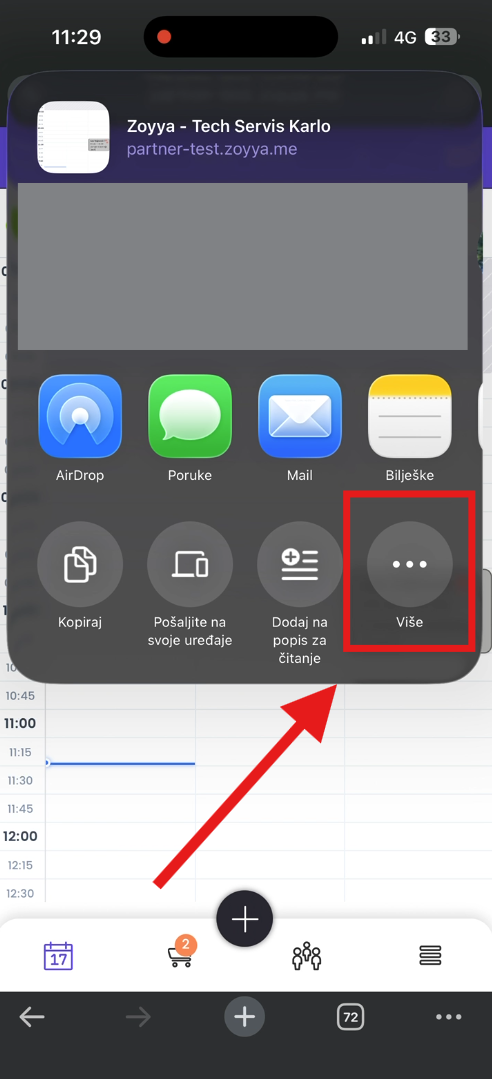
- If you are using Chrome, tap the Share button in the upper right corner, then tap More.
|
|
|---|
- In the action list, tap Add to Home Screen.
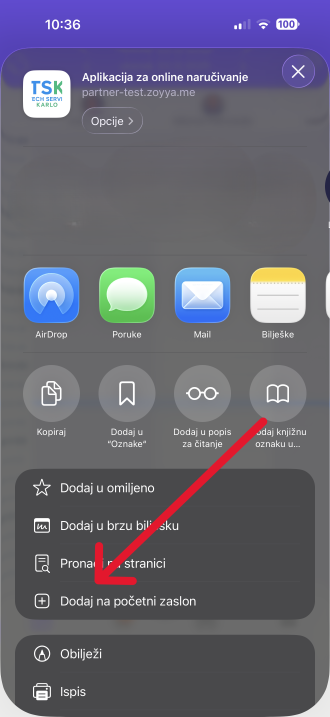
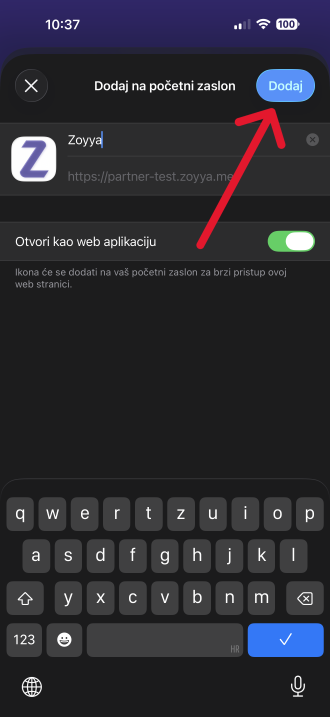
- If desired, edit the name of the icon and confirm the addition by touching Add.
Frequently asked questions
In which browsers can I add Zoyya to the home screen?
The instructions in this article apply to Safari (newer look), Safari (older look), and Chrome.
Will I lose my data after adding to the home screen?
No. You log in to the same user account and all data remains unchanged.
Do I have to use the installed app?
No. You can continue to use Zoyya through an Internet browser.
Connected
Updated on: 23/07/2026
Thank you!