
How to create a service package (desktop)
In this article, we show you how to create a service package in Zoyya via PC. You will learn how to select a package type, add services that the package includes, and save an offer for sale or assignment to clients.
PLATFORM_SWITCH: Computer · Mobile phone
On the computer
On your computer, do the following:
- Open the "Gift cards" menu.
- Click "Create New".
- Select type "Service package".
- Select creation method.
If you are using an existing template
- Choose "Select template" and choose the appropriate one. Once you've made your selection, click "Continue".
- Check all information.
- If desired, immediately associate the service package to the client – select the client from the list in the "Client" field.
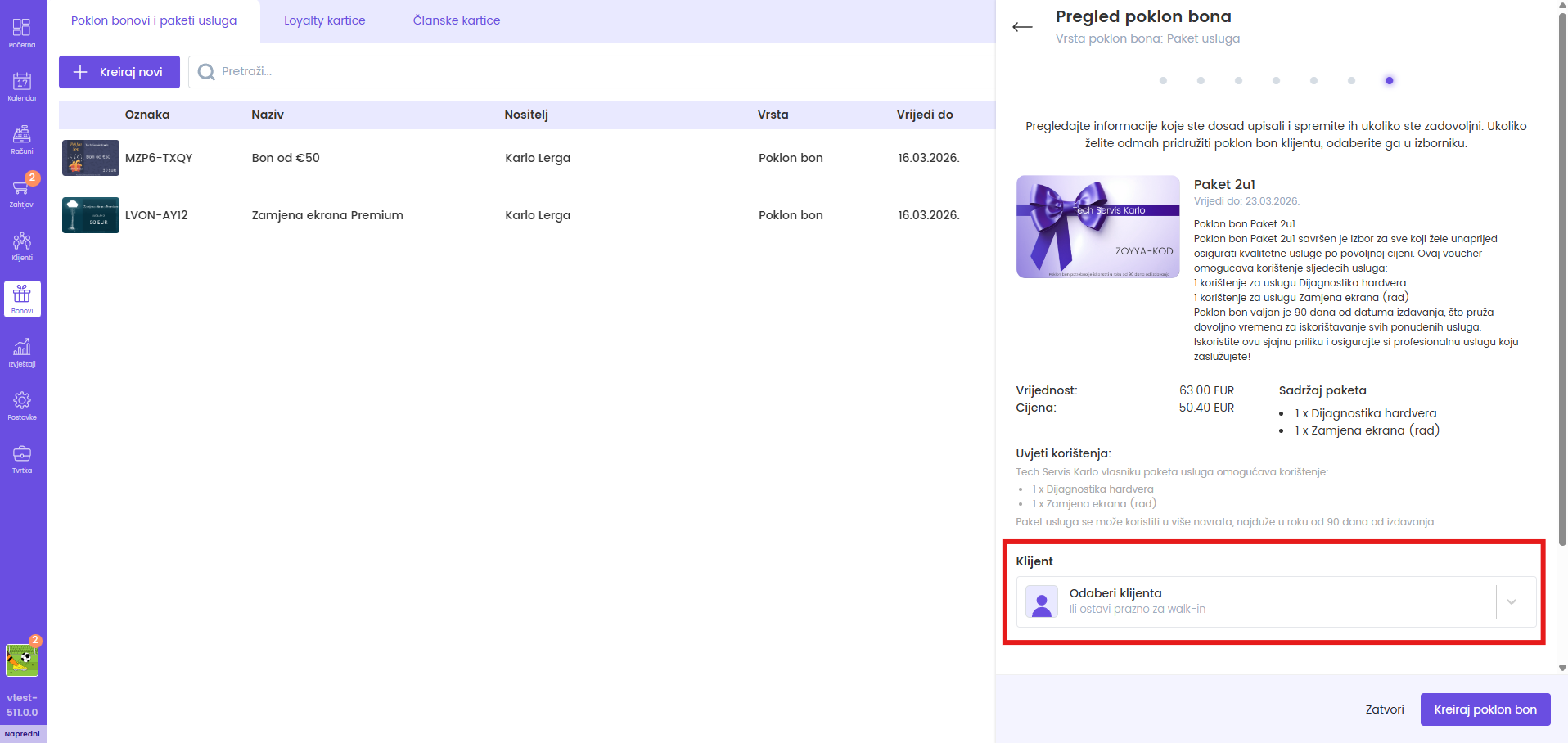
- Click "Create Service Pack".
- The service package is displayed on the voucher list and is ready for sale or assignment.
If you are creating a package without a template
- If you don't have a template, click "Continue without template".
Basic data
- Type name.
- Set "Validity" of the package, i.e. its duration.
- You can choose days, weeks, months or years.
- Click "Next step".
- After that, select the services included in the package, as well as the amount of services that the package covers.
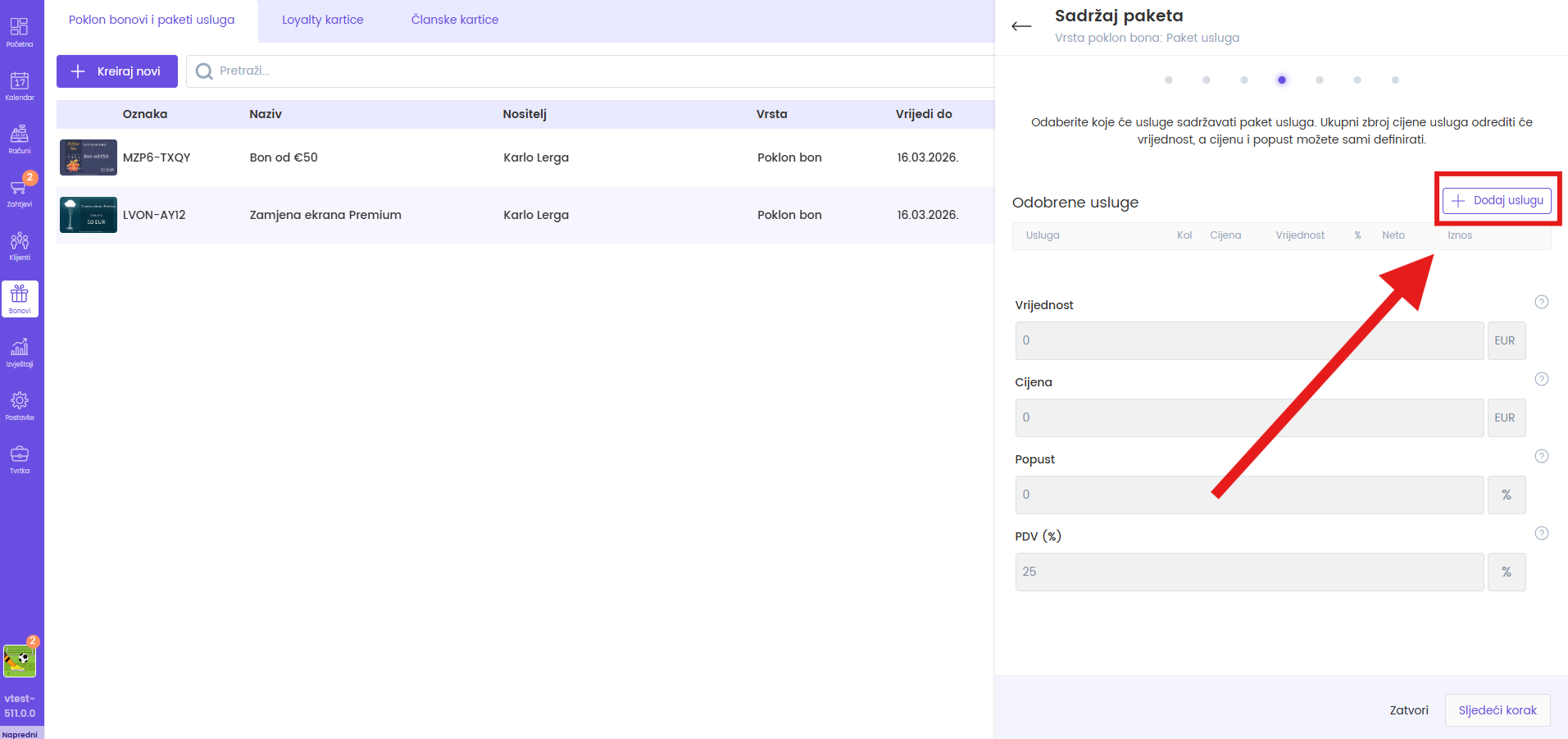
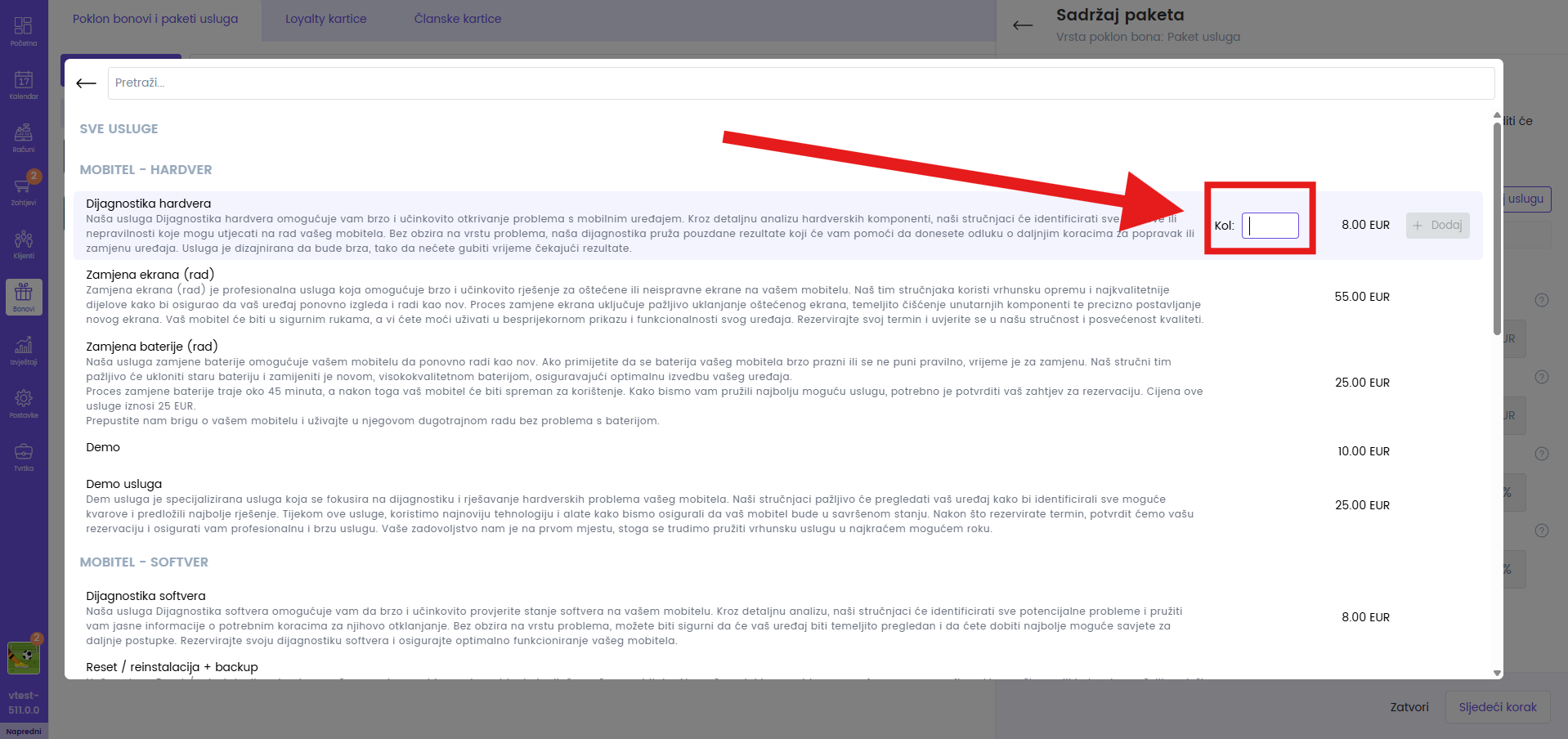
- The total sum of the price of the selected services determines the package value, and you can adjust the price at which you sell the package as you wish.
- Price and value can be the same if you don't want to include discount.
- Price will be lower if you choose to enter discount.
- You can add the discount in percentages or directly enter the price, and the percentages will be displayed themselves.
- If necessary, add VAT in percentage.
- Continue to "Next step".
Description and terms of use
- Enter a short description of the service package and adjust the terms of use.
- If desired, click "Generate with AI" for a text suggestion.
- Click "Next step".
- At the beginning of the "Design selection" step, you can immediately select an existing design or upload your own.
- If you want to use an existing design, click "Choose existing design".
- In the design selection window you can choose images from your existing templates or use the "Zoyya templates" tab and choose one of the ready-made styles.
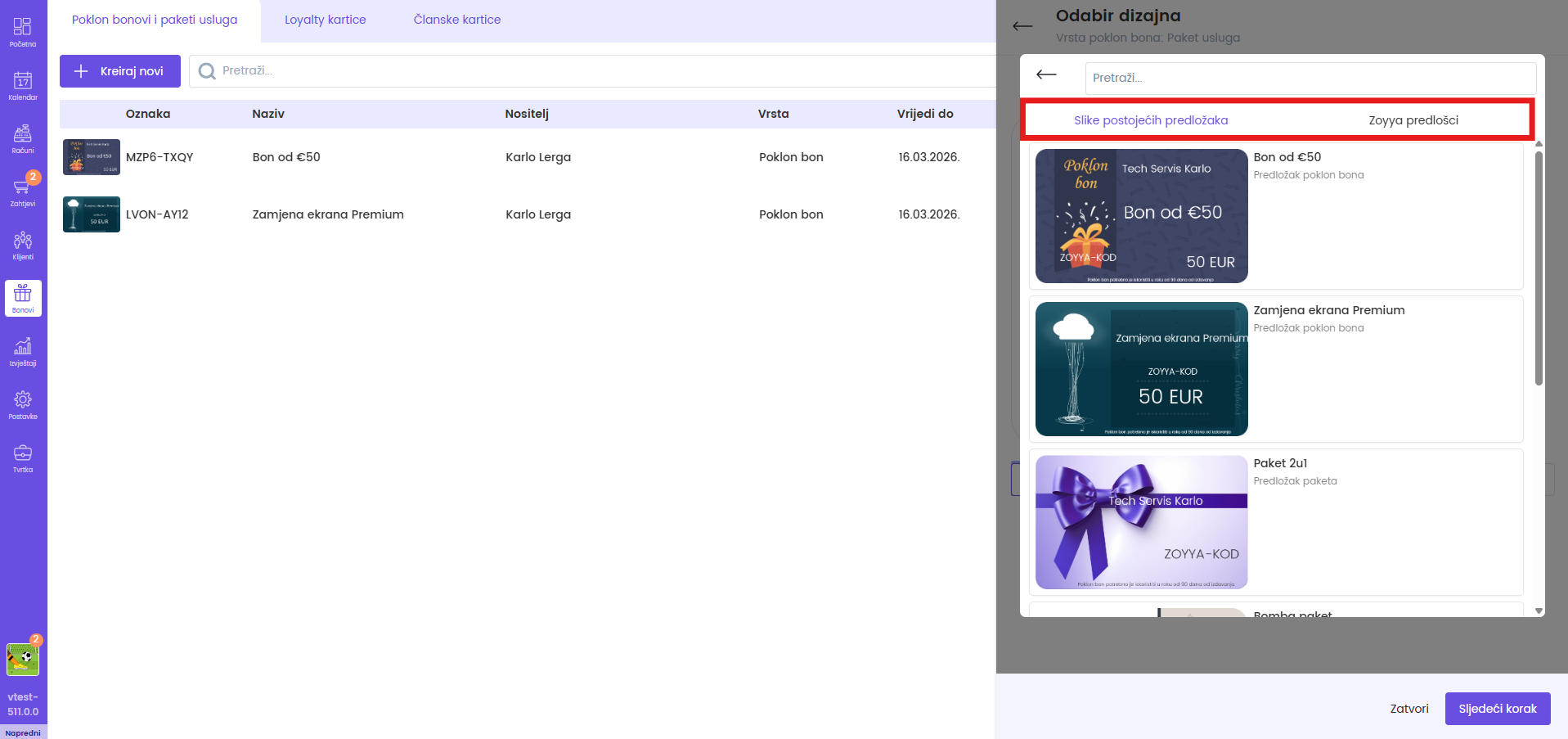
- If you want to use your own image, click "Upload" and select a file from your computer.
- After choosing a design, turn "Show title" and "Show subtitle" on or off as needed.
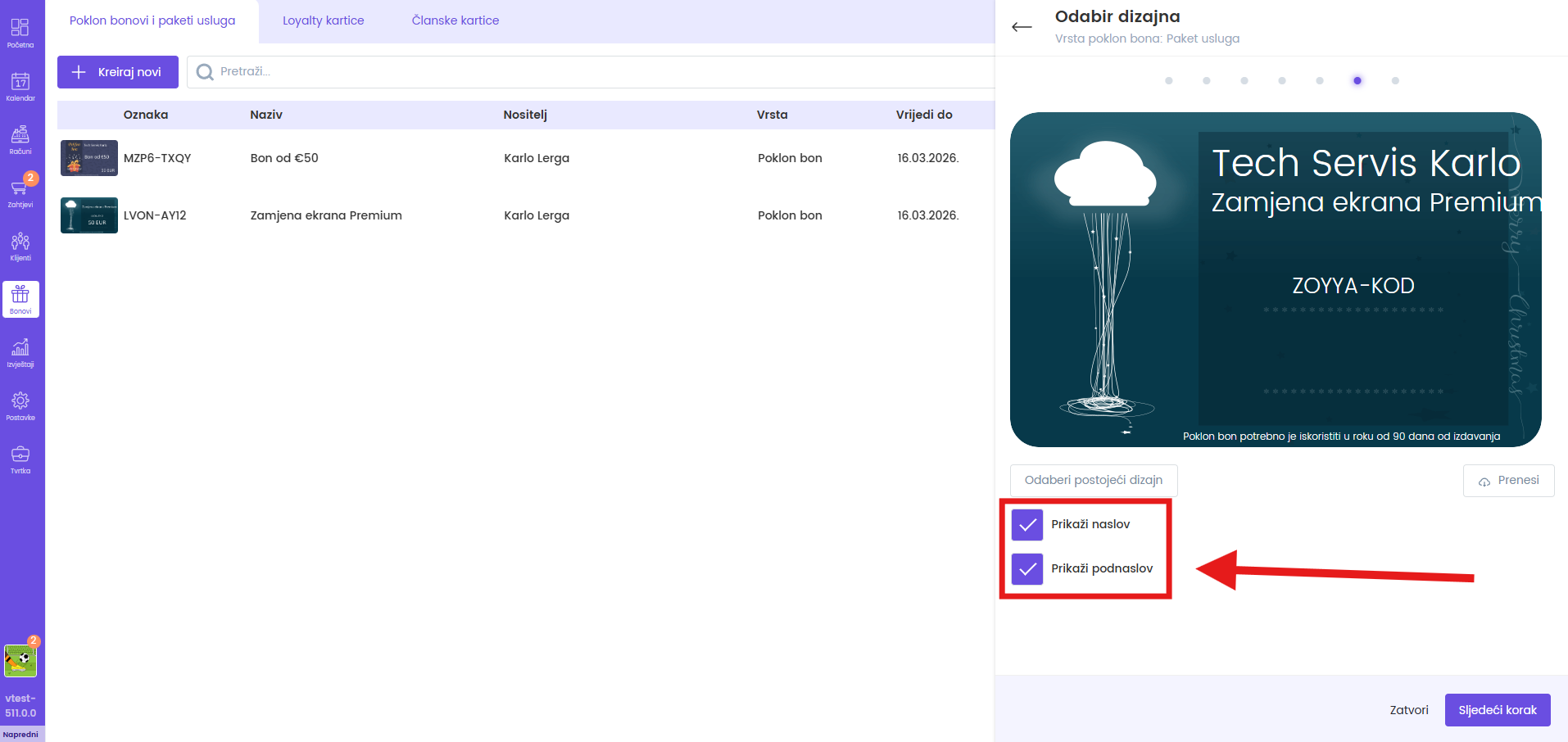
- Click on the text on the template and drag it to the desired location.
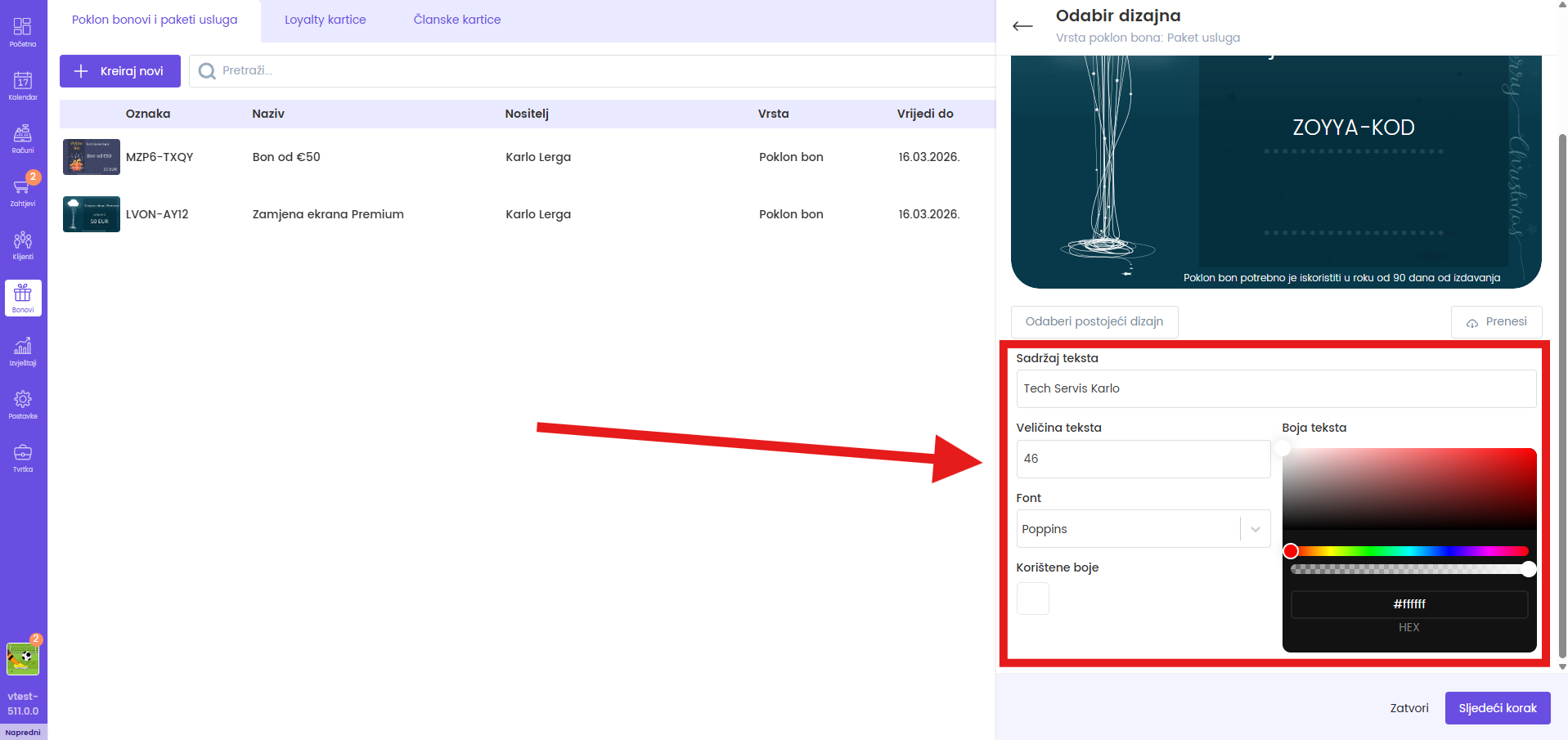
- In the "Text content" field, write the desired name or message.
- For label and info text the content is fixed and cannot be changed, but their appearance is adjusted to the chosen design.
- Set the text size, choose the font and change the text color if you want a different look.
- If you want another design, please open "Choose existing design" again or click "Upload" and choose a new image.
- When you are satisfied with the design, click "Next step".
- At the end check all data.
- If desired, immediately associate the service package to the client – select the client from the list in the "Client" field.
- Click "Create Service Pack".
- The service package is now visible in the voucher list and ready for sale or assignment.
Connected
Updated on: 28/07/2026
Thank you!