
How to create a gift card (desktop)
In this article, we show you how to create a gift card in Zoyya via computer. You will learn how to use an existing template or create a voucher from scratch and how to assign it to a client.
PLATFORM_SWITCH: Computer · Mobile phone
On the computer
To create a gift card on your computer, do the following:
- Open "Gift cards".
- Click "Create New".
- Select the type "Gift card" and select the creation method.
If you are using an existing template
- Choose "Select template", and choose the appropriate one.
- After making your selection, click "Continue".
- Check all information.
- If desired, immediately associate the gift card to the client – in the "Client" field, select the client from the list.
- Check "Send email to client" so that the client will receive information about the associated gift card via email.
- Click "Create gift card", and the voucher will be created.
If you create a voucher without a template
- Click "Continue without template".
Basic data
- Type name.
- Set the "Validity" of the gift card, i.e. its duration.
- You can choose days, weeks, months or years.
- Enter the value of the voucher, i.e. the total value of services or products that can be exchanged for a gift card and the price at which you sell it.
- Value and price are the same if you don't want to include the discount.
- Price will be lower if you choose to enter discount.
- You can add the discount in percentages or directly enter the price, and the percentages will be displayed themselves.
- Click "Next step".
- Optionally restrict usage to specific services.
- Click "Add a service" and select types and specific services.
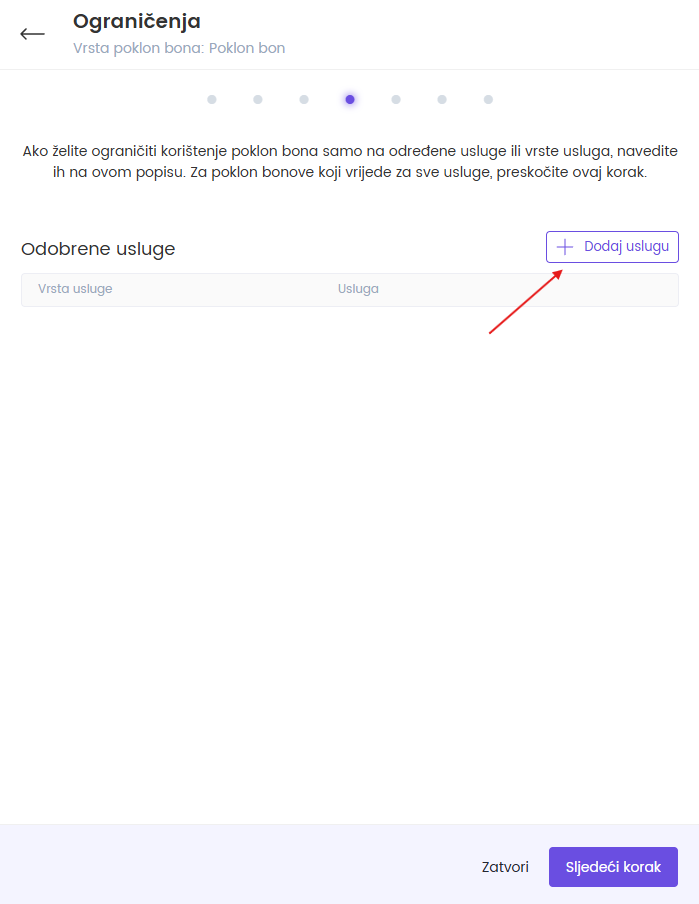
- If the voucher is valid for all services, skip this step.
- Continue to "Next step".
Description and terms of use
- Enter a short description of the gift card and adjust the terms of use.
- If desired, click "Generate with AI" for a text suggestion.
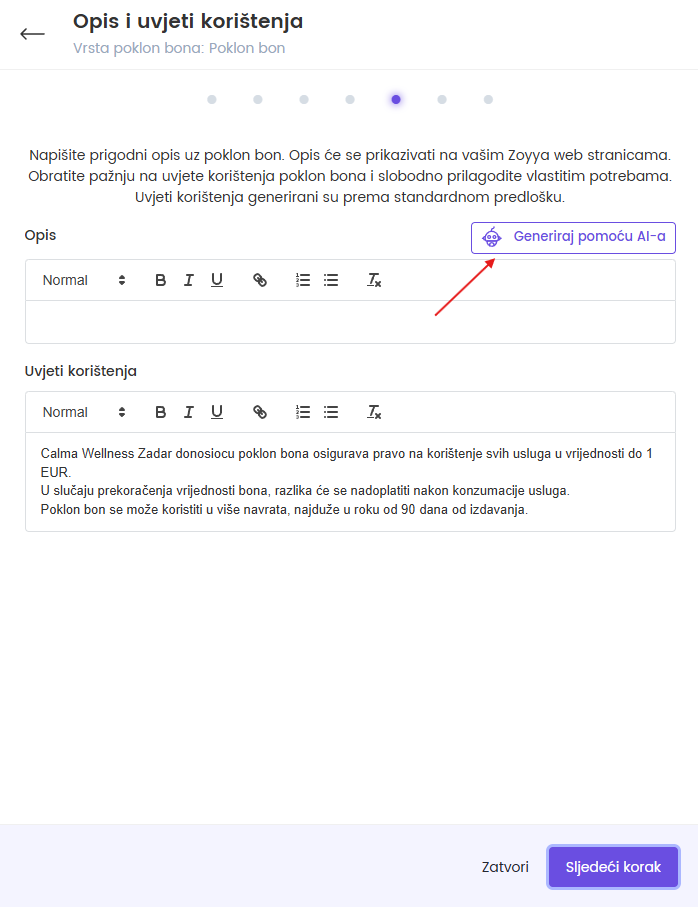
- Click "Next step".
Design selection
You can immediately choose an existing design or upload your own image.
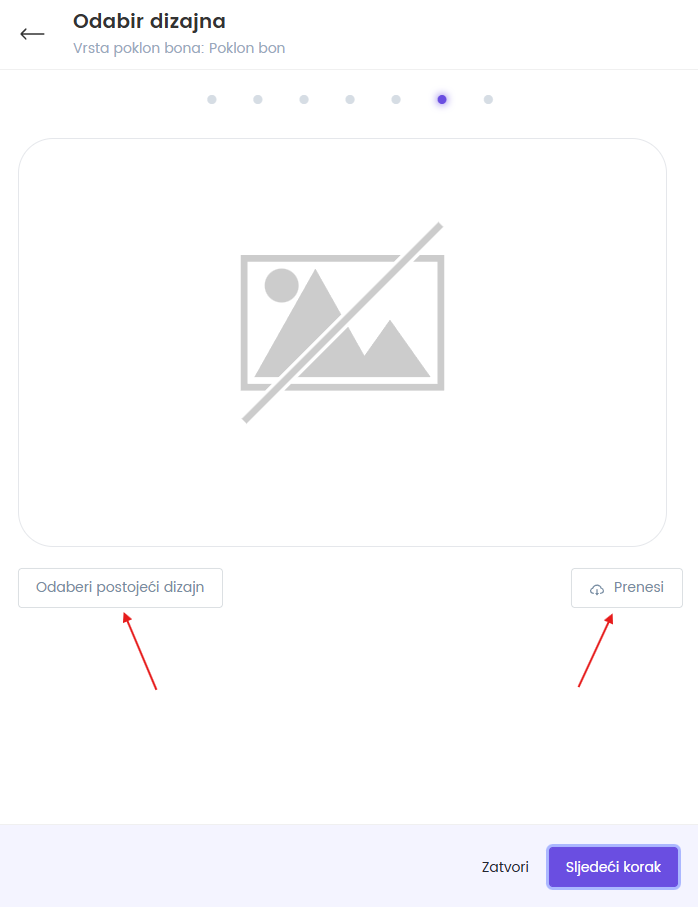
- Choose the design of the voucher by clicking "Choose existing design" or "Upload" if you have your own image.
- You can also use ready-made Zoyya templates.
- If you have selected your template, you can continue.
- If you choose ready-made templates, open "Zoyya templates" and select style.
- Template is loading to review.
- Turn "Show title" and "Show subtitle" on or off as needed.
- Click on the text on the template itself and drag it to the desired location.
- In the field "Text content" type name or message.
- Set the text size and select the desired font.
- Change text color.
- For voucher amount, label and informational text the content is fixed and cannot be changed, but their appearance is adjusted to the chosen design.
- If you want a different look, please open "Choose existing design" or "Upload your own image" again.
- When you are satisfied with the design, click "Next step".
- At the end check all data.
- If desired, immediately associate the voucher to the client – select the client from the list in the "Client" field.
- Check "Send email to client" so that the client will receive information about the associated gift card via email.
- Click "Create gift card".
- The gift card is now visible in the voucher list and ready for sale or assignment.
Note
To sell gift cards and service packages online, check the technical conditions and see How to create a gift card for online sales.
Frequently asked questions
Can I use an existing template?
Yes. Select "Select template", select a template and continue with data verification.
Can I limit the gift card to certain services?
That. In the services step, select "Add a service" and select types or specific services.
Can the client receive an email about the voucher immediately?
Yes. Check "Send e-mail to client" before creating the gift card.
Connected
Updated on: 28/07/2026
Thank you!