
How to copy the gift card link (mobile)
In this article, we show you how to get a gift card link in Zoyya via mobile. You'll learn where to find the link, how to copy it, and how to share it with clients or post it online.
PLATFORM_SWITCH: Desktop · Mobile
On the cell phone
Do the following on your mobile phone:
The first way is through the Zoyya business application.
- Open the Main menu.
- Under Sales and loyalty, expand Gift cards and packages, then tap Templates.
- In the list of templates, select the gift card for which you want to get a link.
- In the template details, make sure "Online sales" is enabled.
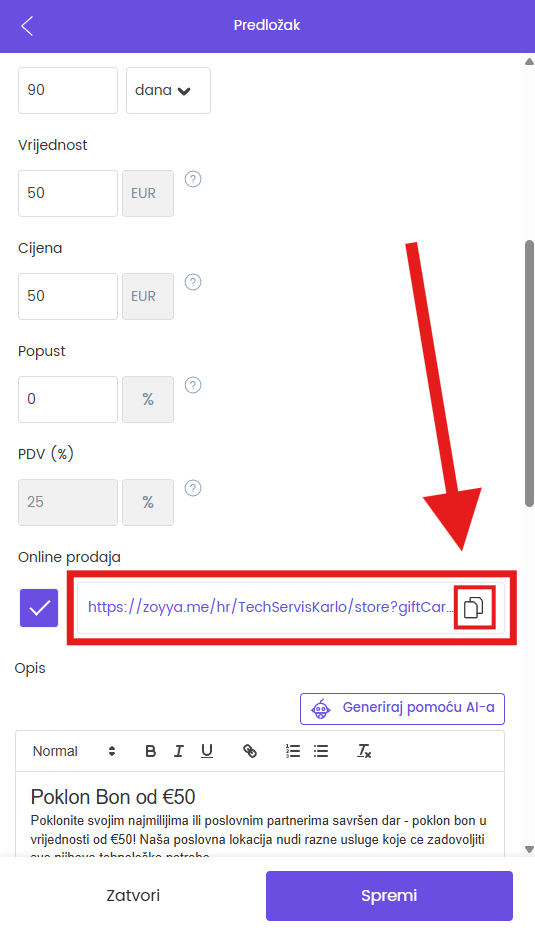
- In addition to that option, a gift card link is displayed, and immediately to the right is the "Copy" icon.
- Use the "Copy" icon to save the link to the clipboard and then paste it in a message, post or on your website.
- The second way is from the browser, through the "Zoyya.com" page, in the same way as the client sees your location.
- Open "Zoyya.com" in your browser and search for your location.
- Open the location's public profile and select the "Gift cards" button.
- Make sure the page shows the gift cards you want to share.
- Select the gift card you want to share.
- In the address bar of the browser copy the displayed URL.
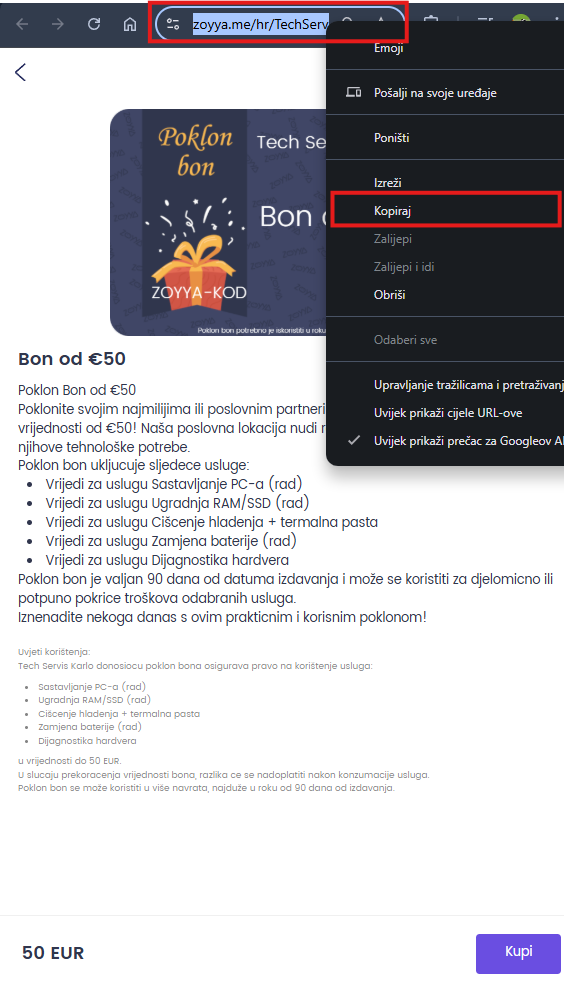
- That URL is a link that leads directly to the offer of a specific gift card, and you can send it to clients via messages, e-mails or share it on social networks.
Connected
Updated on: 21/08/2026
Thank you!