
How to send an invitation to a client (desktop)
In this article, you will learn how to send an invitation to a client for online ordering through the partner Zoyya web application on a computer. You can send the invitation when adding a new client or subsequently to an existing client.
PLATFORM_SWITCH: Desktop · Mobile
When to use this option?
Use this option when:
- you are adding a new client
- you want to enable online ordering for existing clients
- the client is not yet connected to your location in Zoyya
Work steps
Sending an invitation to a new client
- Open Clients and click New client.
- Enter the client's information.
- After entering the e-mail address, turn on the Send an invitation via e-mail option.
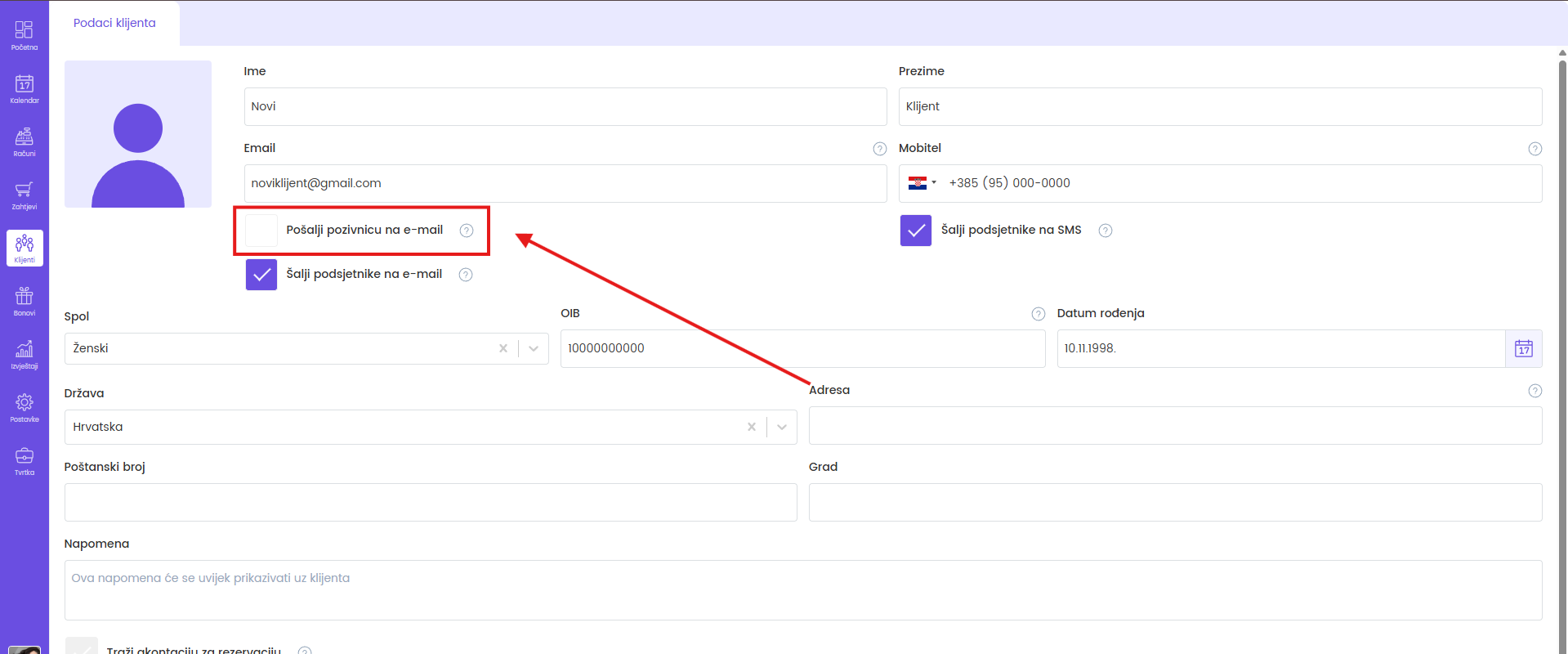
- Click Save.
Sending an invitation to an existing client
- Open Clients.
- If the client already exists in the database, open Clients and find it in the list.
- Click on the Send an invitation icon.
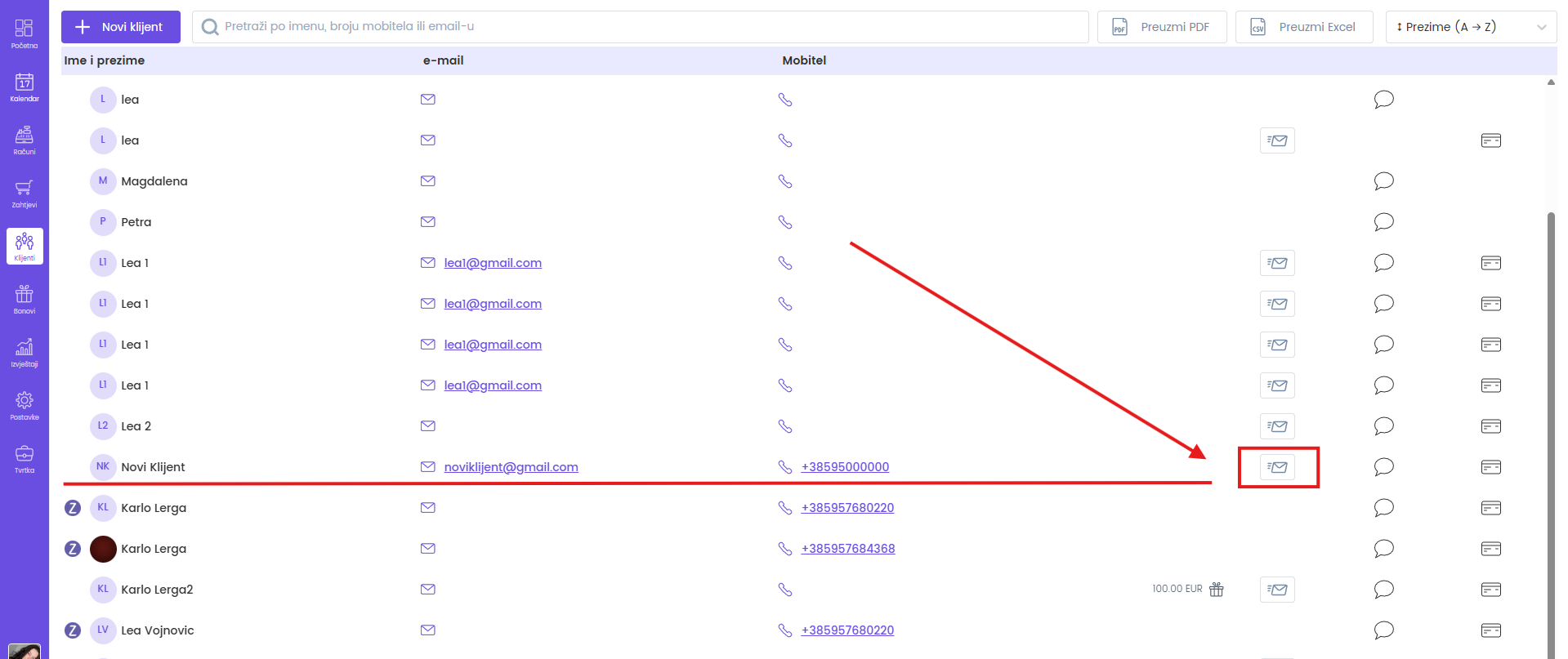
- The system immediately sends an invitation to the client's e-mail. If the icon is not visible, check whether the client has an email address entered or is already using Zoyya.
Frequently asked questions
Can I send an invitation to an existing client?
Yes. In the client list, click the Send an invitation icon next to the desired client.
Why can't I see the send invitation icon?
Check whether the client has an e-mail address entered or is already connected to your location in Zoyya.
What happens after accepting the invitation?
The client completes the registration, connects to your location and can use online ordering and receive notifications and reminders.
Connected
- How to add a client
- How to set notifications for clients and the location
- How to view appointments of an individual client
Updated on: 23/07/2026
Thank you!