
How to copy profile link (desktop)
In this article, you will learn how to copy a link to the public page of your location using the partner Zoyya web application on your computer. You can share that link with customers to quickly access online ordering.
PLATFORM_SWITCH: Desktop · Mobile
When to use this option?
Use this option when:
- want to share online ordering with clients
- posting a link on social networks
- you are editing your website
- send the link via email, SMS or messaging apps
Work steps
You can copy the link to the location's public page in two ways:
- by copying the link from settings
- by copying the link from the public page
1. Copy link from settings
- Open Settings → Online reservations.
- Find the text Clients will be able to order via.
- Right-click on the displayed link and select Copy Link Address.
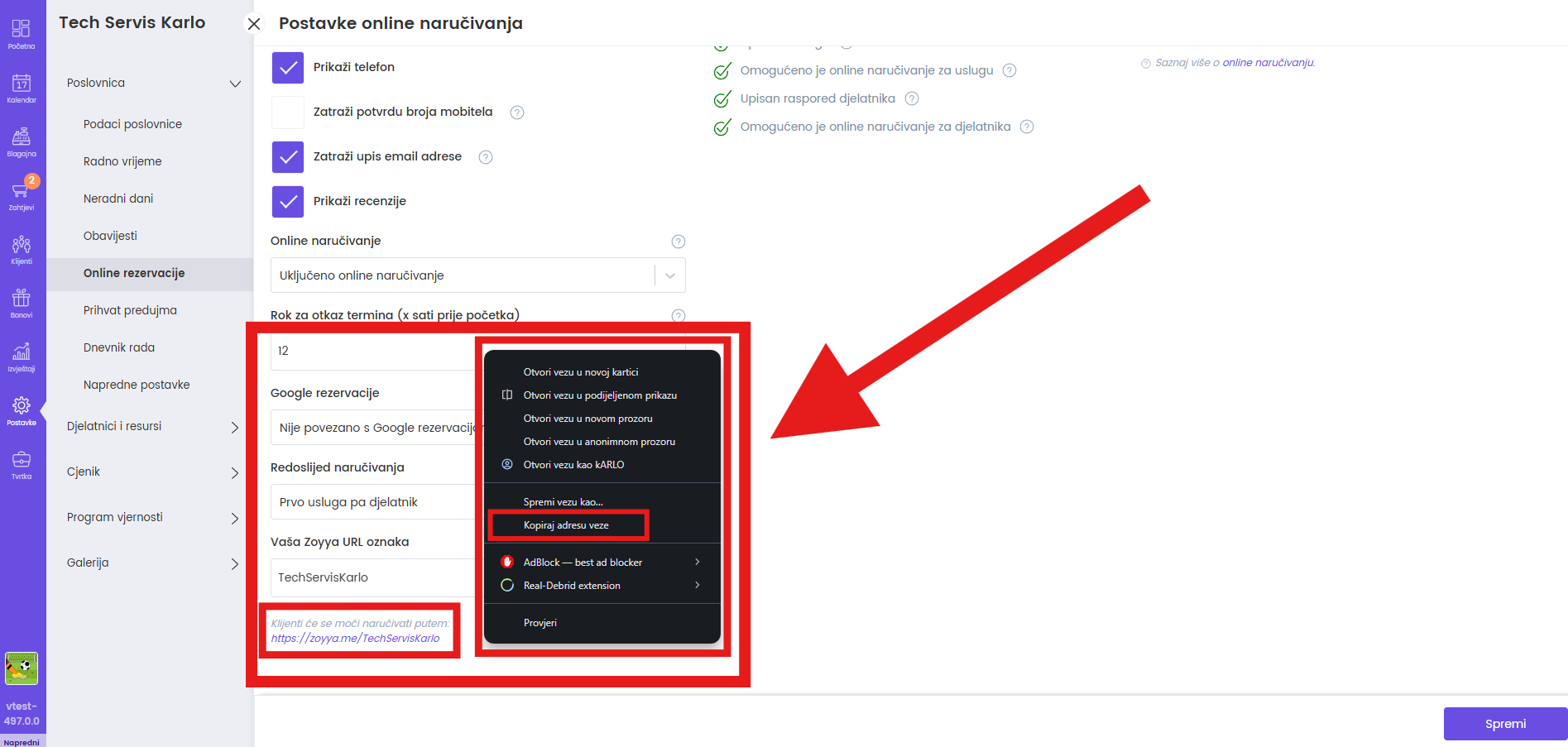
2. Copying a link from a public page
- Open Zoyya.com.
- Find your location and open its public page.
- Copy the address from the browser's address bar.
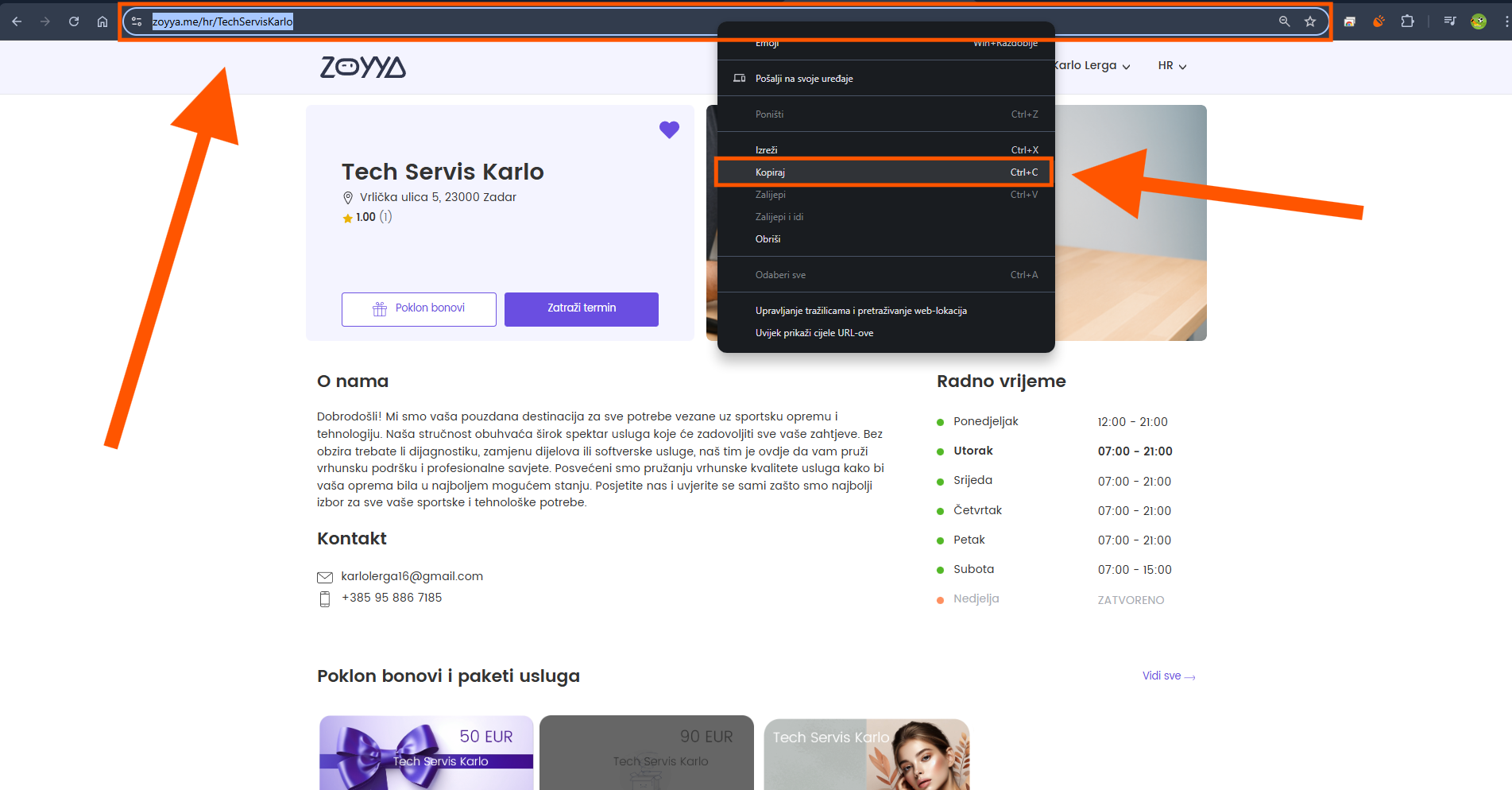
Frequently asked questions
Will the link change if I edit the location information?
No. Changing location information does not change the link, unless you change the Zoyya URL tag in the online booking settings.
Where can I share the link?
You can publish it on the website, social networks, send it by e-mail, SMS or through messaging applications.
Can clients book an appointment immediately?
Yes, if online ordering is enabled and set up correctly for your location.
Connected
- How to make online reservations
- How to copy service link
- How to download the location's QR code
- How to connect Google Business profile to Zoyya
Updated on: 23/07/2026
Thank you!