
How to add membership fee type (mobile)
In this article, you will learn how to create a type of membership fee through the partner Zoyya web application on your mobile phone.
The type of membership fee serves as a template that determines the rules of use, duration, limitations and price of the membership fee. Once you've created it, use it as the basis for adding individual memberships to clients. This makes adding new memberships faster, and the rules of use remain consistent.
PLATFORM_SWITCH: Desktop · Mobile
When to use this option?
Use this option when:
- you are introducing memberships into your business for the first time
- you want to define the rules for using memberships
- you offer different types of memberships, for example monthly, quarterly or yearly
- you want to determine the duration, limits and prices of memberships in advance
- you want to standardize the memberships you assign to clients
Work steps
Basic data
- Open the Main menu.
- Under Business, tap Settings, then under Membership settings, tap Membership types.
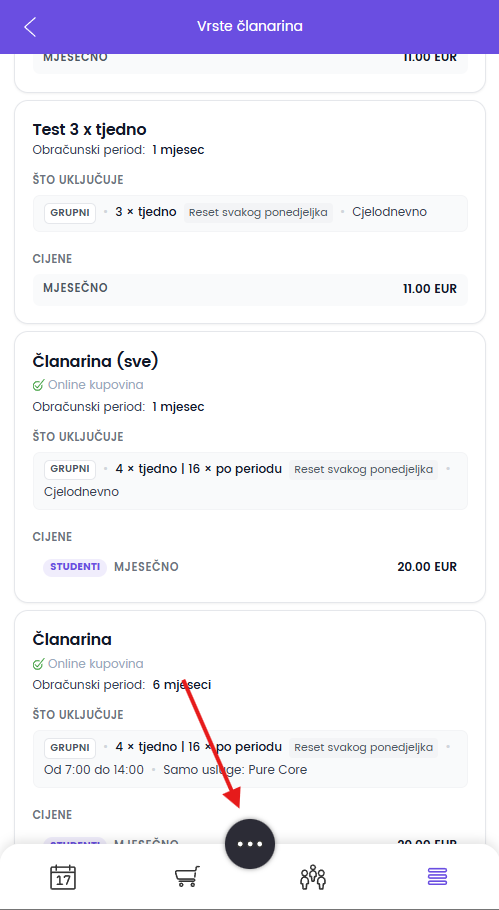
- Enter the name of the type of membership fee.
- Optionally add a short description.
Membership fee duration
- Select Billing period.
The billing period determines how long one membership fee period lasts and in which the price and rules of use are calculated.
- If the membership fee lasts for several accounting periods, specify the Number of periods.
- Determine whether online purchase of the membership fee is enabled.
- Select to whom online renewal is available, for example to all or only selected members.
When online renewal is enabled, the client opens the location in the Zoyya client application, selects Memberships, and purchases the same membership type. After successful payment, Zoyya recognizes the existing renewable membership of the same type and creates the next period after the active or already scheduled future period.
The one-time One-time (in days) membership is not renewed. A new purchase creates a new one-time membership.
What it includes
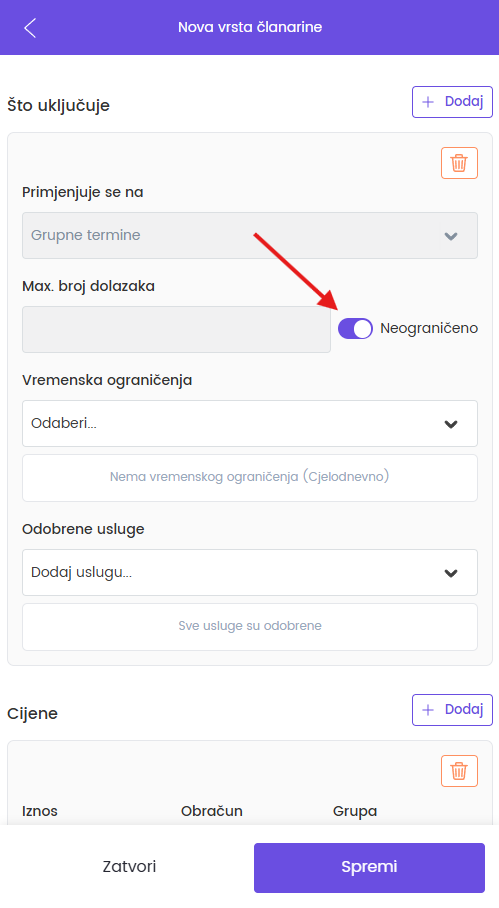
- Set the Maximum number of arrivals.
If the limit is not necessary, leave the option turned off so that the membership fee allows an unlimited number of arrivals. "Maximum number of arrivals" is the maximum number of arrivals allowed within the period you specified.
- Select Restriction Period.
This allows you to determine the period in which the used arrivals are counted, for example a week, a month, a billing period or the total duration of the membership fee.
- Select Reset Mode.
This setting determines when the number of available arrivals is renewed again, for example at the beginning of the calendar period or according to the start date or renewal of memberships.
- If necessary, include Additional limit per billing period.
The additional limit sets the total upper limit of arrivals within the accounting period and is applied together with the basic limit.
- If necessary, set the limit Total (during duration).
This limit determines the maximum total number of arrivals during the entire duration of the membership fee.
Time Limits and Services
- Add time limits if you want the membership fee to be used only on certain days or at certain hours. You can find detailed steps in the article How to enter time limits.
- If the membership fee is not valid for all services, select the services that the membership fee includes in the Approved services section.
Price
- In the Prices section, enter the amount of the membership fee.
- Select Billing method.
- If you use groups of clients, if necessary, set a special price for each group.
- Tap Save.
The membership fee type is now ready to use when adding memberships to clients.
Frequently asked questions
What is the difference between a type of membership fee and a membership fee?
The type of membership fee determines the rules of use, duration, limitations and price. Membership is a specific membership that you assign to an individual client based on that type.
Do I have to create a membership fee type first?
Yes. It is not possible to add a membership fee to a client without a previously created membership fee type.
Can I use one type of membership fee for multiple clients?
Yes. You can use one membership type to add memberships to different clients.
Will changing the type of membership fee affect the existing memberships?
No. Memberships already assigned to clients remain unchanged. Only new memberships, which you add after changing the membership type, will use the new rules and settings.
Can I change the price or membership type rules later?
Yes. You can edit the type of membership fee later. Changes will be applied to new memberships you add after saving the changes.
Connected
- How to add membership fee (mobile phone)
- How to add group of clients in memberships
- How to add time limits for memberships
- How to add a new client
Updated on: 21/08/2026
Thank you!