
How to delete or disable an employee (desktop)
In this article, you will learn how to disable an employee's access or delete an employee on desktop, and how each action affects the calendar and existing appointments.
PLATFORM_SWITCH: Desktop · Mobile
Difference between disabling and deleting
Disable immediately removes the employee's access to Zoyya while keeping their active employee profile, schedule, services, and calendar display. Use it when access must be removed temporarily or permanently but the location still needs the employee record.
Delete removes the employee from the active list, future selection, and active calendar display. Deletion does not cancel or move existing appointments.
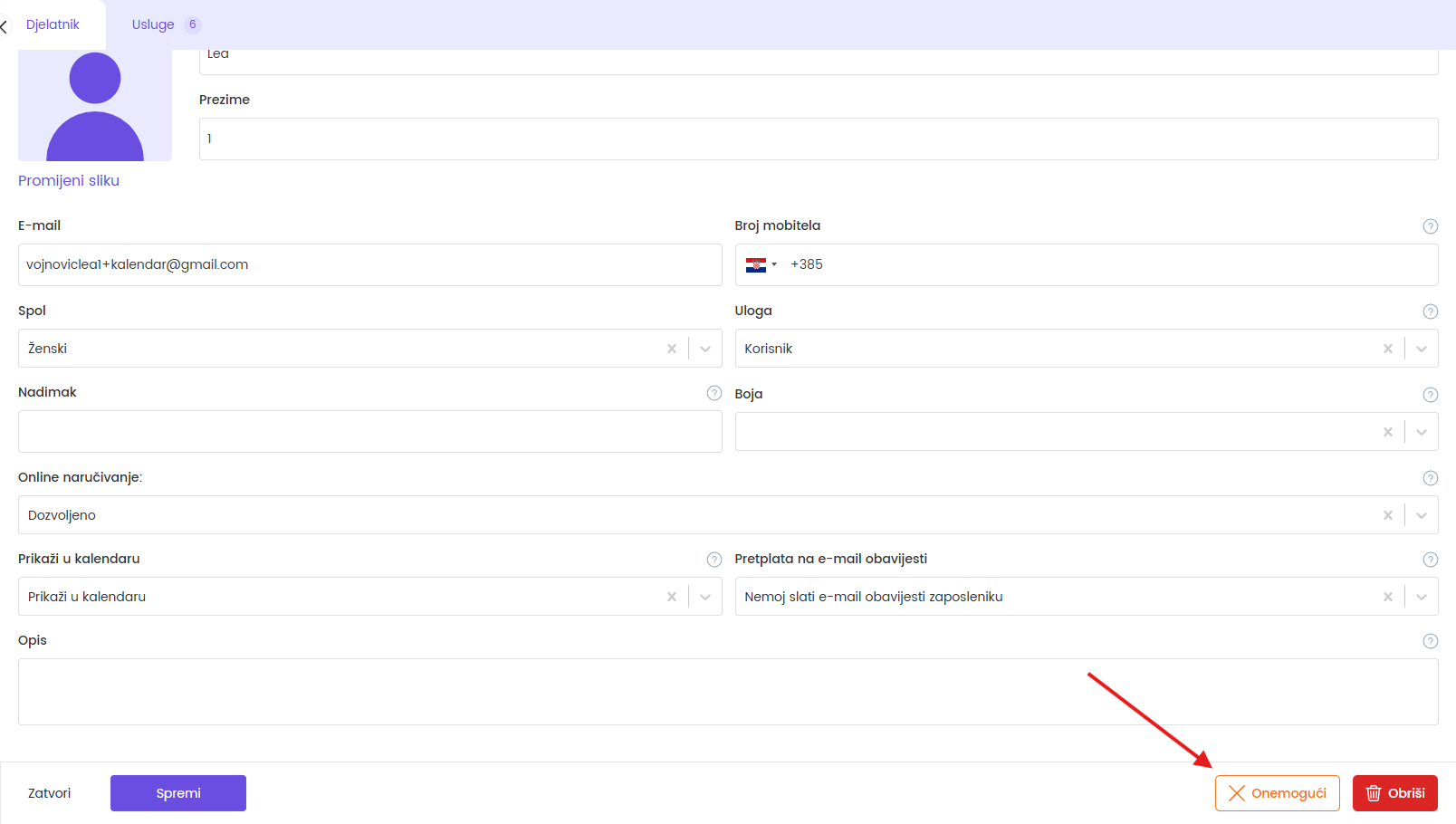
Disable an employee
- Open Settings > Employees and resources > Employees.
- Select the employee who has access to Zoyya.
- Click Disable and confirm.
Delete an employee
- Open the employee as described above.
- Click Delete.
- If Zoyya displays a warning about future appointments, review them before confirming.
- Confirm deletion.
Related
- How to add and edit an employee (desktop)
- How to edit an employee schedule (desktop)
- How to manage employee permissions (desktop)
Updated on: 22/07/2026
Thank you!