
How to edit an employee or resource schedule (desktop)
In this article, you will learn how to set up and edit the schedule of an employee or resource, such as a room, hall or device, in the Zoyya partner web application on a computer. This schedule determines when the employee or resource is available for booking. You will learn how to open shifts, set recurrence and view the schedule in the calendar.
PLATFORM_SWITCH: Computer · Mobile phone
When to use this option?
Use this option when:
- you open a schedule for a new employee or resource
- you change an employee's working hours or a resource's availability
- you plan shifts for a certain period
- you want to set a different schedule for even and odd weeks
- you need to mark non-working days for an employee or resource
Work steps
To edit an employee or resource schedule on a computer, do the following:
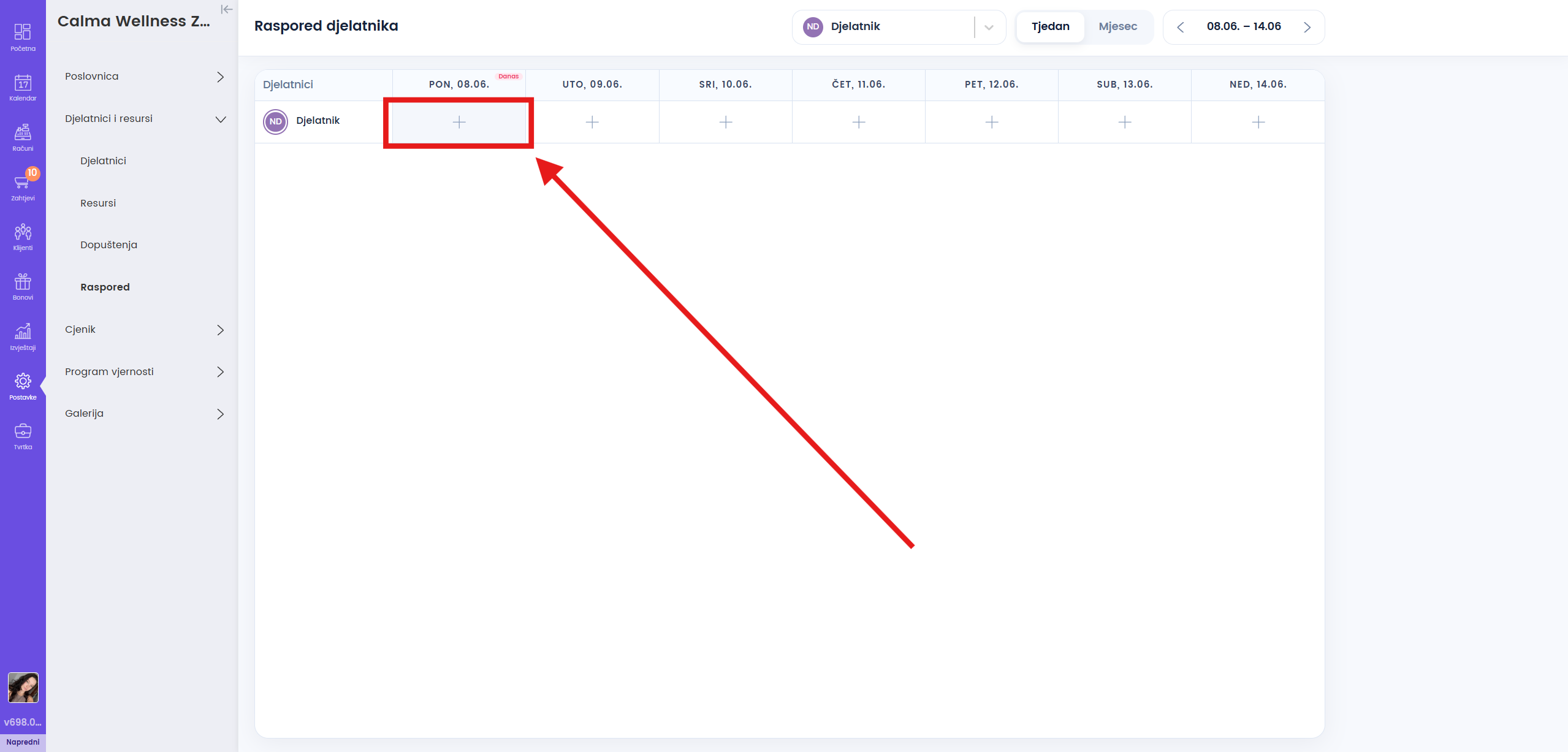
- Open Settings → Employees and resources → Schedule.
- Click on "+" in the given field for the desired employee or resource.
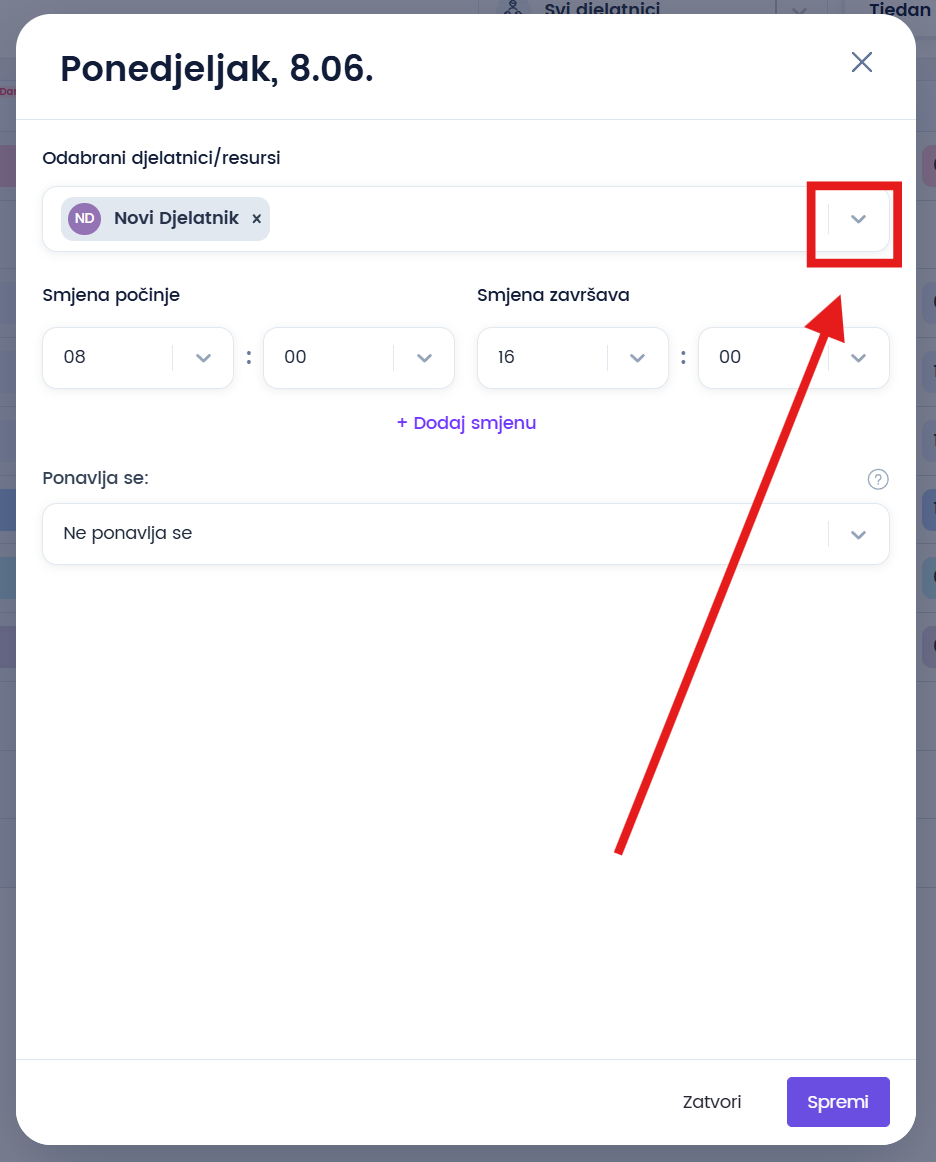
- Set the shift start and end times: Shift starts and Shift ends.
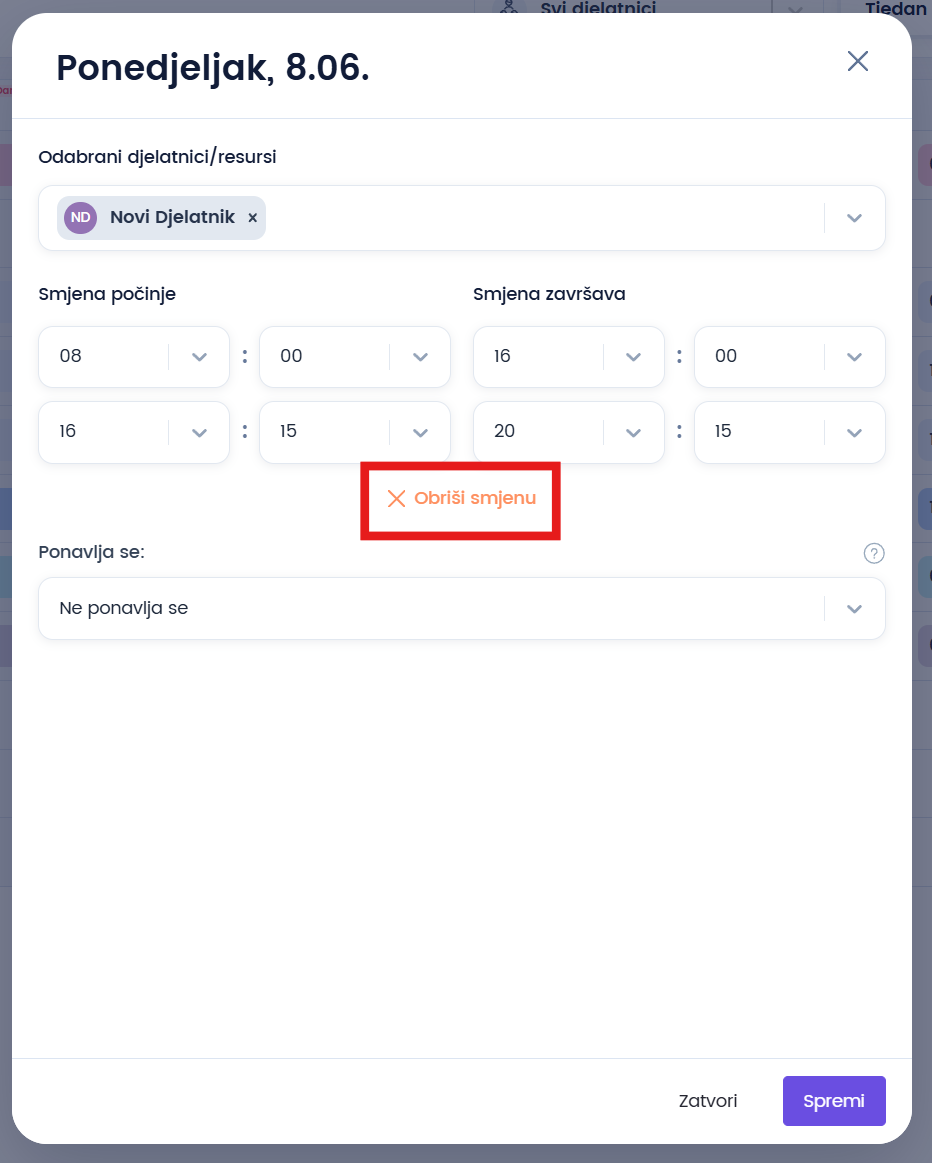
- For multiple shared shifts in the same day, click Add a shift. You can also delete a shared shift.
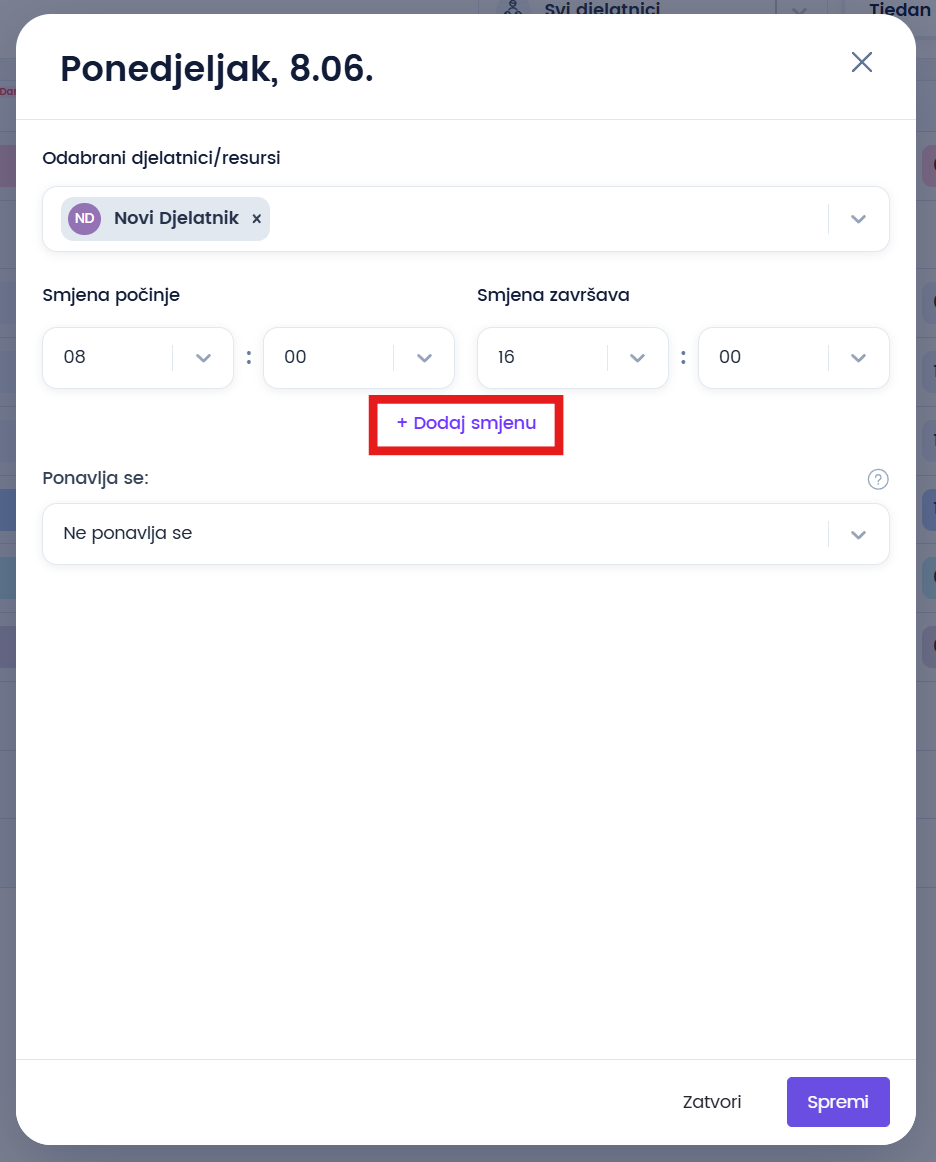
- If you are only changing the schedule for one day, leave No repeat, otherwise set the settings to automatically open the schedule for the given period.
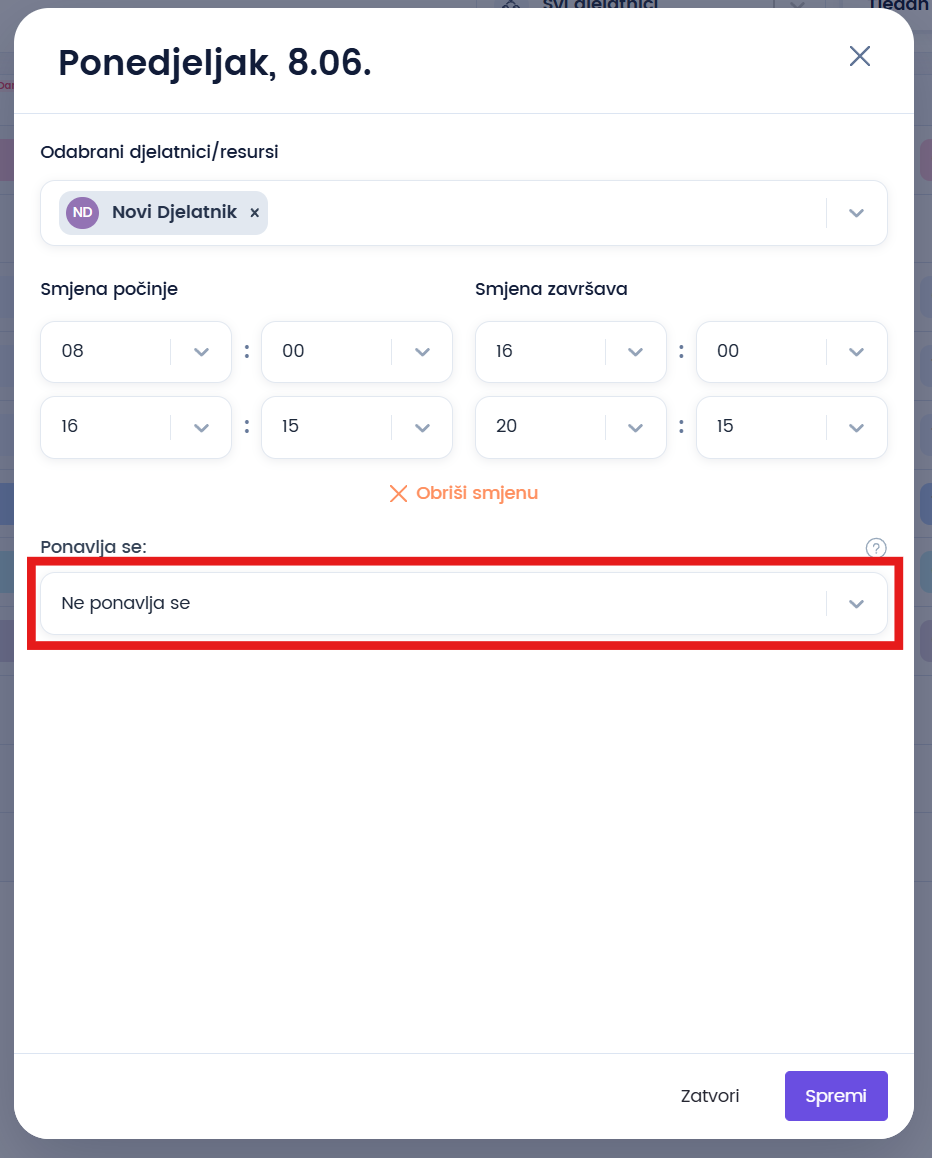
- When opening the work schedule for the period, choose whether you open the schedule for Every week or Every other week, depending on whether the employee works the same every week, or every other week.
- For the variant Every other week, enter a shift in an odd week, then switch to the next week and repeat the process. Thus, the pattern repeats correctly throughout the entire period.
- After you have turned on repetition, set Repeat until. This is the date until which the working hours for the selected days will be entered.
- Mark the days of the week on which you want this shift to apply.
- Click Save.
- To change the shift, open the record again by clicking on the existing appointment, change the data and Save.
How to delete a schedule?
- In order to delete the schedule, or set it as non-working, you need to open a certain day and mark Set as not working.
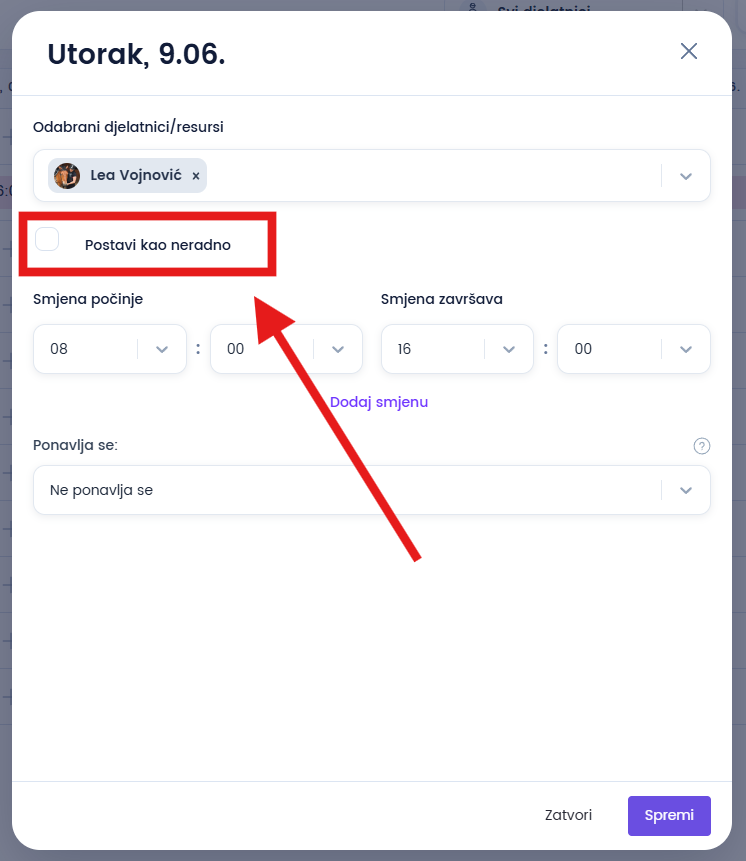
- It is possible to delete a schedule in a given period in the same way as you do opening a schedule.
- Select Recurring, select all days and the date until which you want to delete the schedule, and click Save.
How to view the schedule?
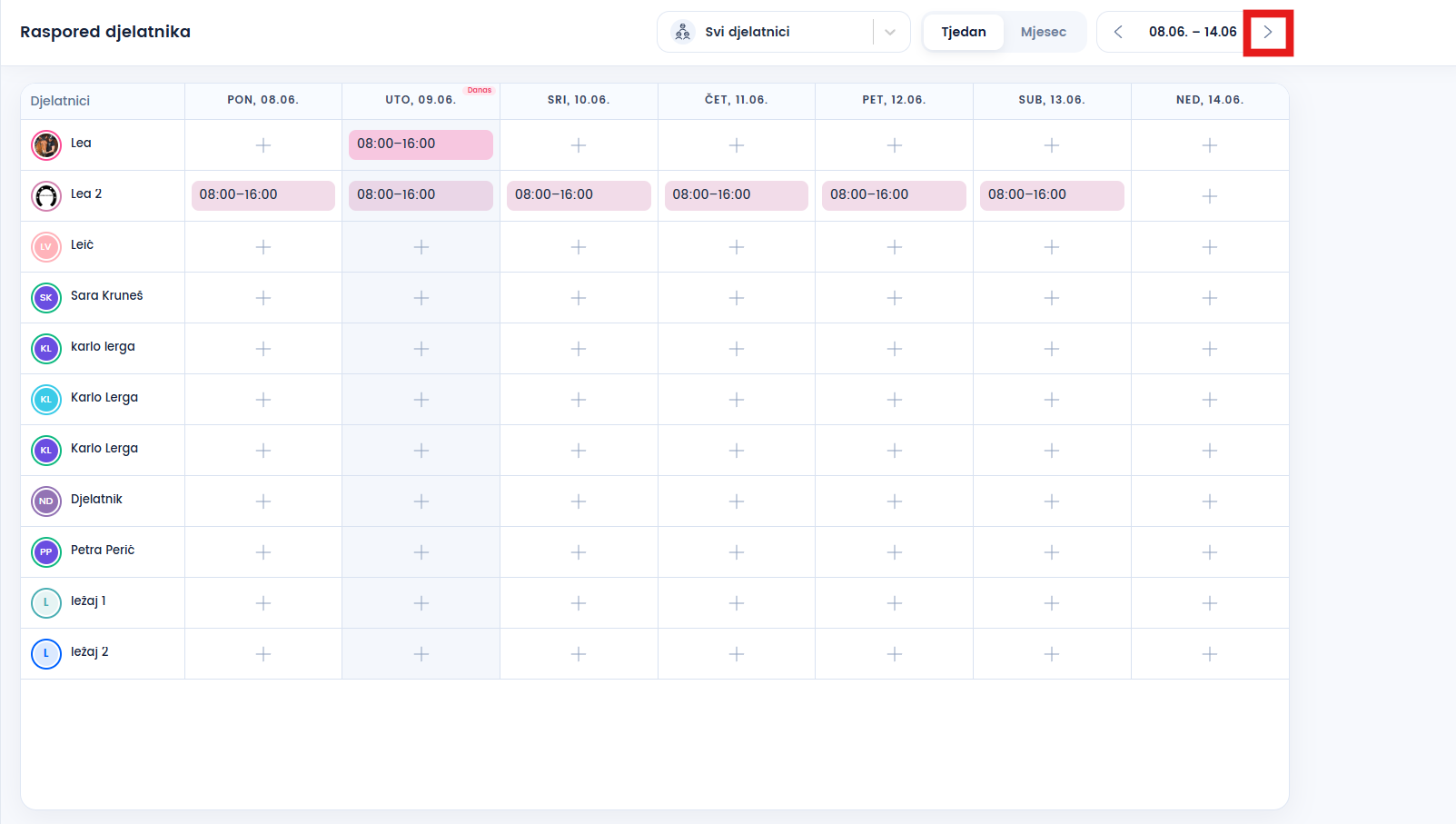
- You can view the schedule using the menu to display the calendar in the upper right corner of the screen.
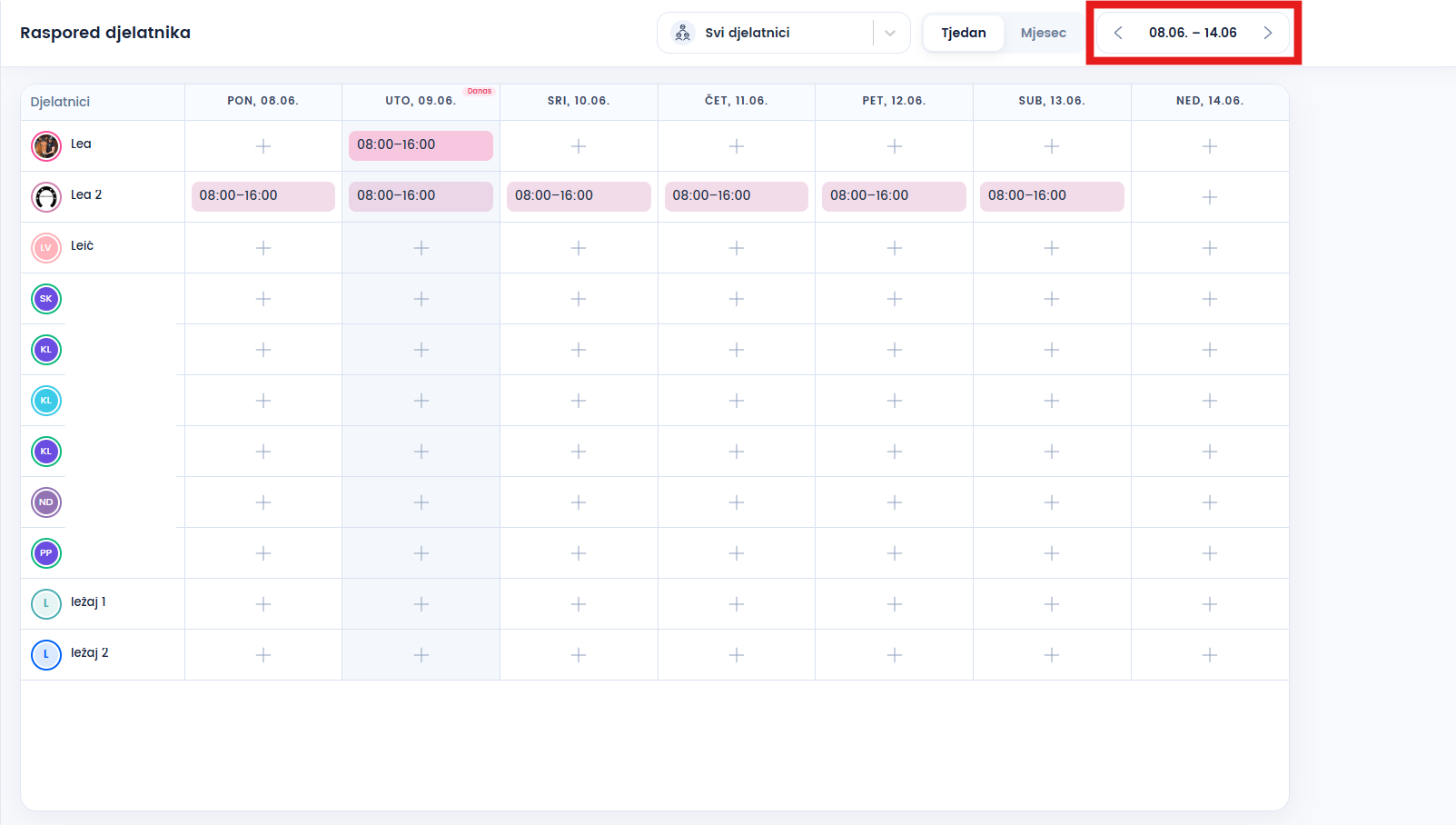
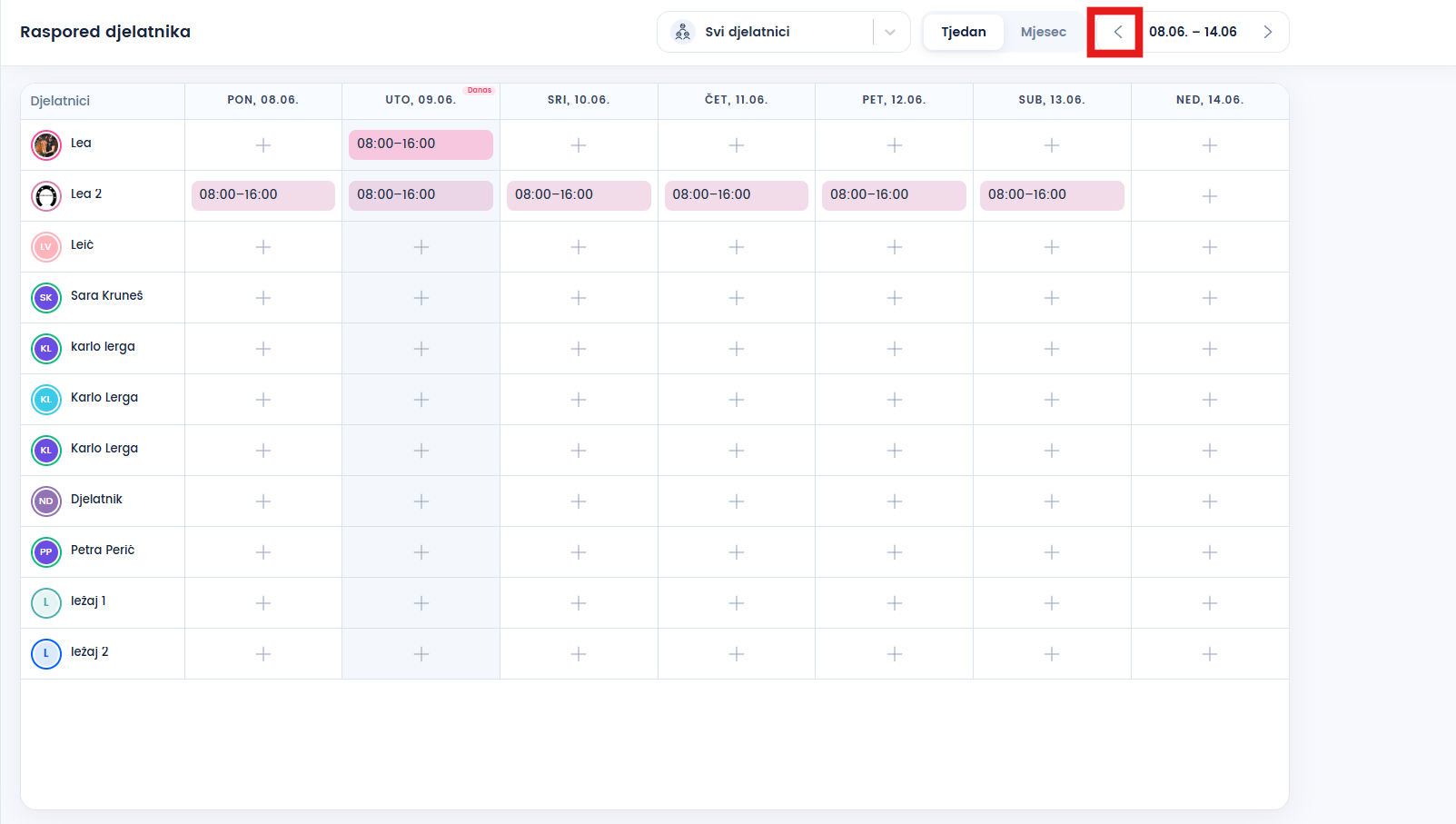
- The left arrow takes you back to the previous week, the right arrow takes you to the next week.
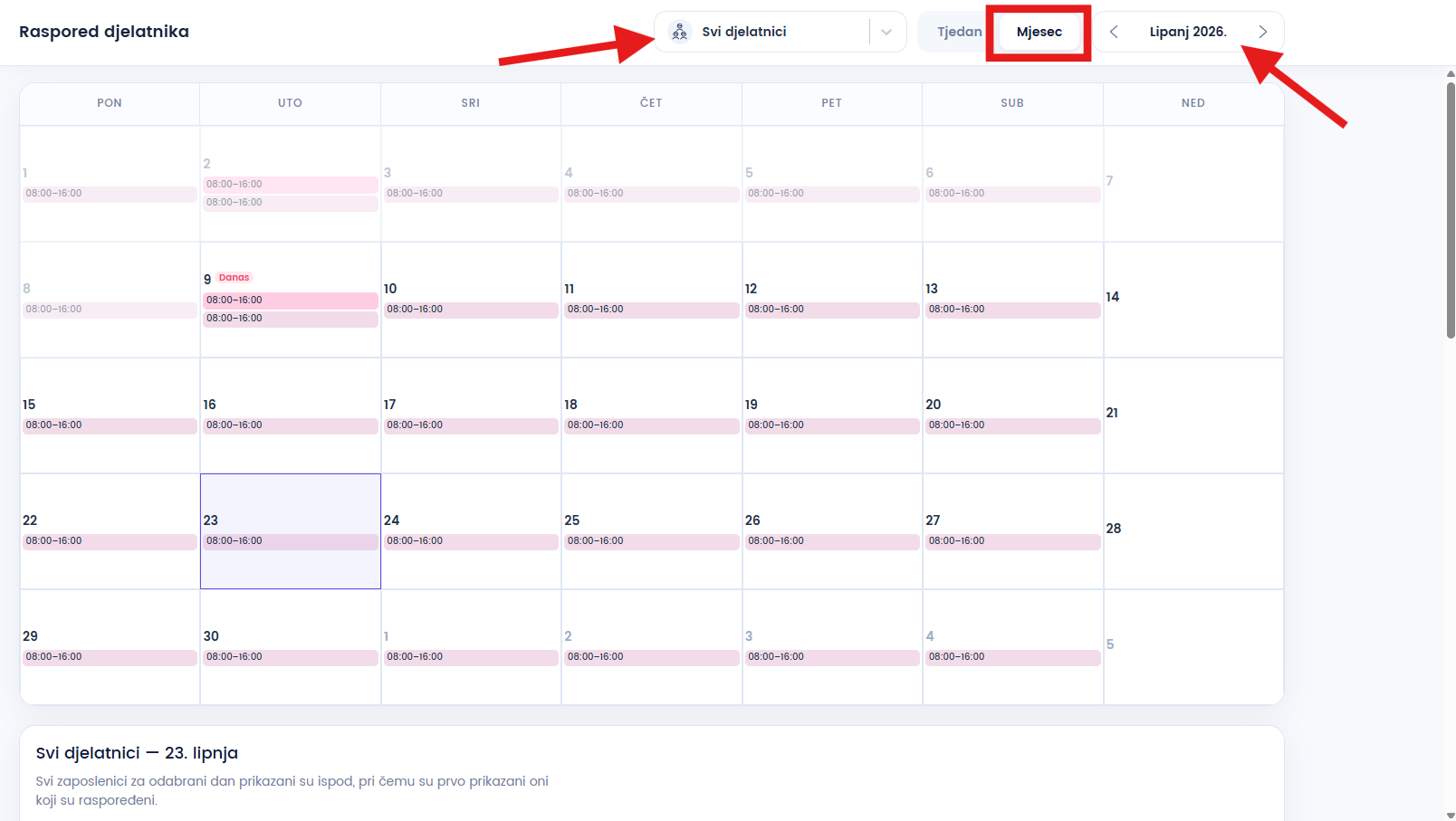
- Clicking on Month opens the monthly view of the schedule, where you can select the employee and the month for which you want to view the schedule.
Frequently asked questions
How to set shifts that repeat every other week?
Select the Every other week option. First enter the shifts for one week, then go to the next week and enter the schedule for the second work pattern. Zoyya will automatically repeat the schedule after that.
How to change an existing shift?
Click on an existing shift in the schedule, edit the data and click Save.
How to mark an employee's non-working day?
Open the desired day in the schedule and check the Set as not working option, then save the changes.
For which period does Zoyya enable schedule generation?
Zoyya enables the automatic generation of schedules up to 12 months in advance.
Can several employees have the same schedule?
Yes. When opening a shift, you can select several employees or resources in the Selected employees/resources field and open the same schedule for them at the same time.
Will changing the schedule affect appointments that have already been entered?
No. Changing an employee or resource schedule does not delete, move or cancel existing appointments. The new schedule affects future availability and new bookings.
If an existing appointment no longer fits the new schedule, it must be changed manually. When it is changed manually, the client is notified according to the location's notification settings.
Connected
Updated on: 31/08/2026
Thank you!