
How to copy the service link (desktop)
In this article, you will learn how to copy a link to a specific service via the partner Zoyya web application on your computer. You can share the link with customers to direct them directly to the online booking of the selected service.
PLATFORM_SWITCH: Desktop · Mobile
When to use this option?
Use this option when:
- you want to share a link to a specific service
- you send the client a direct link for booking
- you publish the service on social networks or a website
- you want to direct clients to one specific service
Work steps
You can copy the link to the service in two ways:
- through the partner Zoyya web application
- via the location's public Zoyya profile
1. Copying the link from the partner Zoyya web application
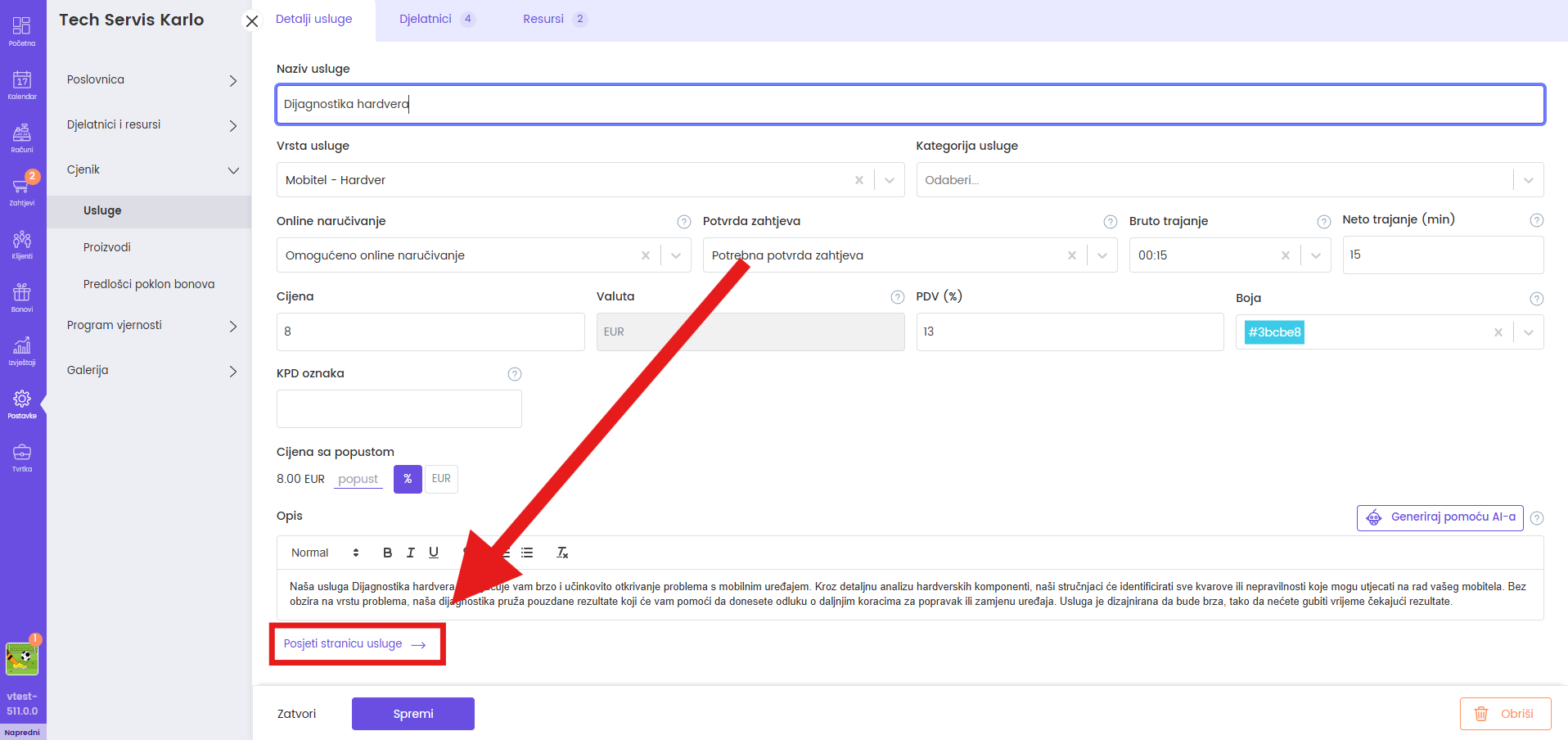
- Open Settings → Price list → Services.
- Open the desired service.
- Click Visit service page.
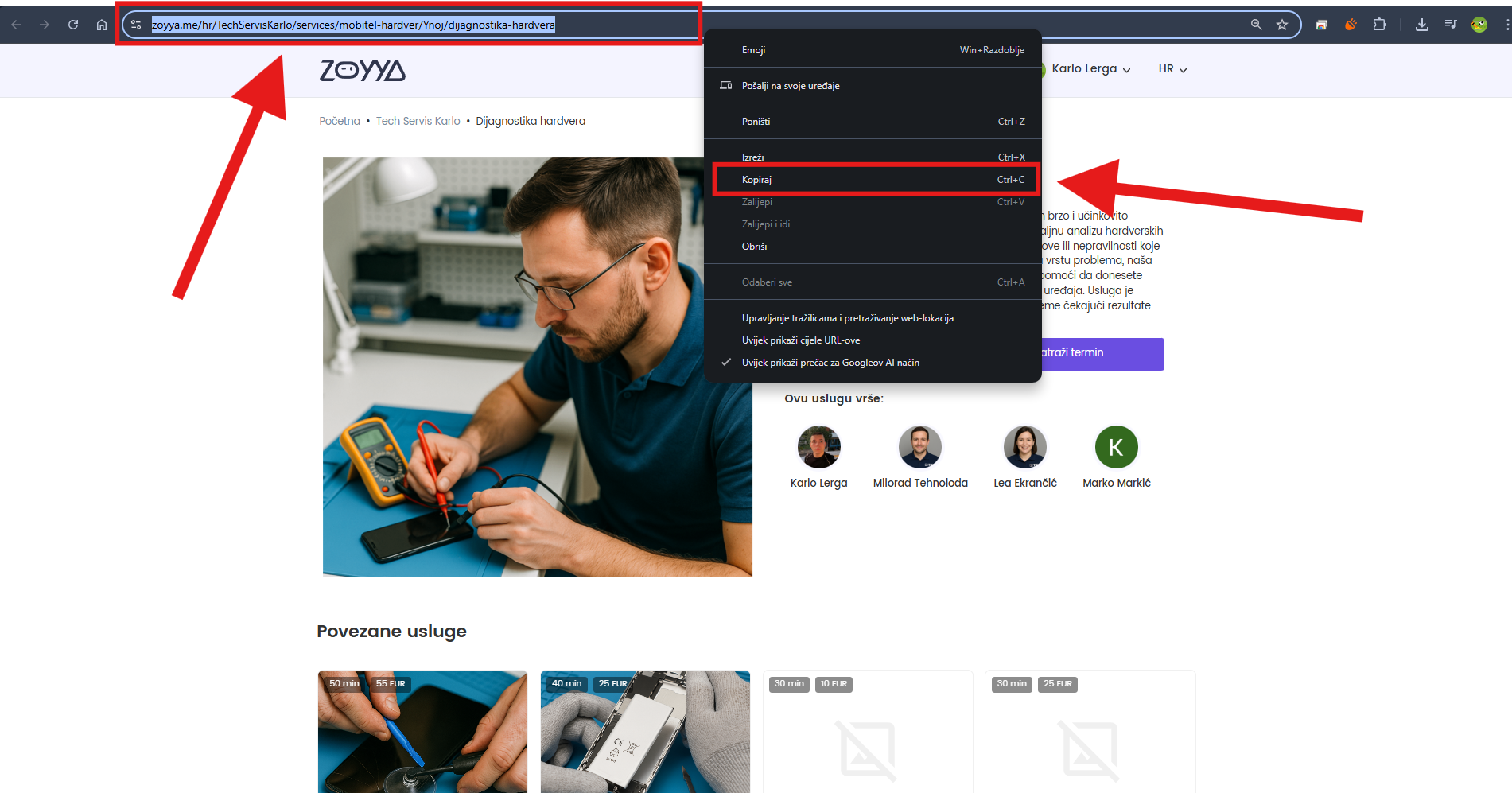
- When the service page opens, copy the address from the address bar of the Internet browser.
2. Copying the link from the location's public profile
- Open the page "Zoyya.com" in the browser.
- On the page, search for and open your public profile on Zoyya.com.
- On the location's public profile, click on the desired service to open its page.
- When the service page loads, copy the address from the address bar of the Internet browser.
Frequently asked questions
Where can I use a service link?
You can send the link via email or message, post it on social media or place it on your website.
Will the client be able to book an appointment through this link?
Yes, if online ordering is included for the service and the service is available for booking.
Can I copy the link for any service?
Yes, for any service that has a public page.
Connected
Updated on: 23/07/2026
Thank you!