
How to add a photo to a service (mobile)
In this article, you will find out how to add a photo with the service through the partner web Zoyya mobile application. Service photos are shown to customers during online ordering and help them better understand your offer.
PLATFORM_SWITCH: Desktop · Mobile
When to use this option?
Use this option when:
- you are adding a new service
- you want to better present your service to clients
- you want to refresh the content of existing services
- you want to display the result, space or equipment associated with the service
Work steps
To add a photo with the mobile service, follow these steps:
- Open the Main menu.
- Under Business, tap Settings, then under Gallery, tap Photo gallery.
- Select the service you want to add a photo to.
- In the Select service... menu, select the desired service.
- If it's easier for you, first click Add a photo, and select the service in the form.
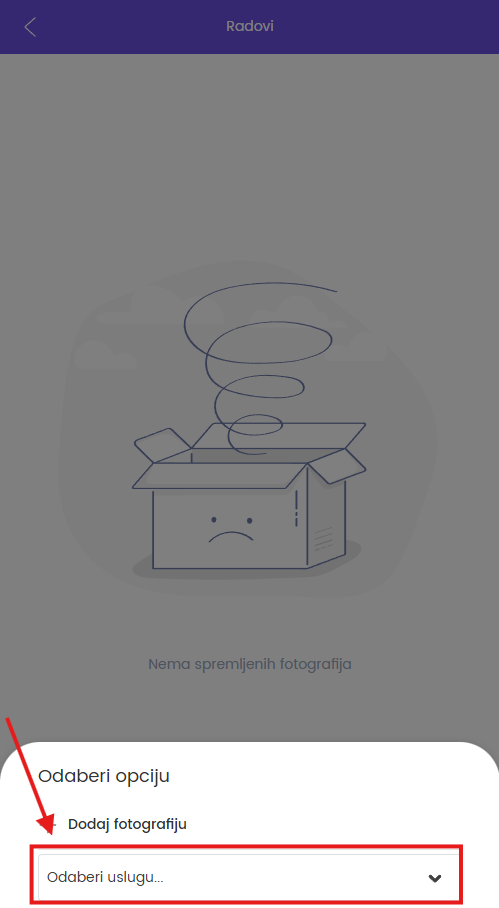
- Click Add a photo.
- Select an image or upload it from your device.
- Add title and description if desired.
- If you did not select a service earlier, select the service to which the photo belongs in the field Related service.
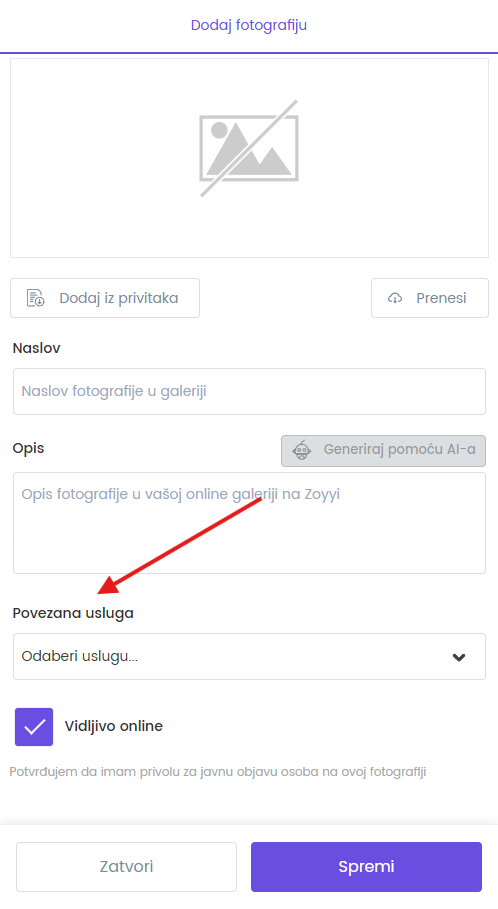
- Mark "Visible online" if you have permission to publicly post the people in this photo.
- Click "Save".
- Check the photo display with the service.
Changes are applied immediately after saving.
Frequently asked questions
Where do clients see the photo associated with the service?
The photo is displayed on the service page during online ordering.
Do I have to link a photo to a service?
Yes. The photo will be displayed with the service only if it is selected in the field Related service.
Can I use the same photo for multiple services?
Yes. You can link the same photo to multiple services by adding separate records for each service.
Connected
Updated on: 21/08/2026
Thank you!