
How to add, edit, and reorder gallery photos (mobile)
In this article, you will learn how to add, edit, and reorder photos in the location gallery through the Zoyya partner web app on mobile. Photos marked as visible online are displayed on the location's public profile.
PLATFORM_SWITCH: Desktop · Mobile
When should you use this option?
Use the gallery to show the premises, team, business atmosphere, or a photo connected to a specific service.
Add a photo
- Open the Main menu.
- Under Business, tap Settings, then under Gallery, tap Photo gallery.
- Tap the three-dot menu at the bottom and select Add photo.
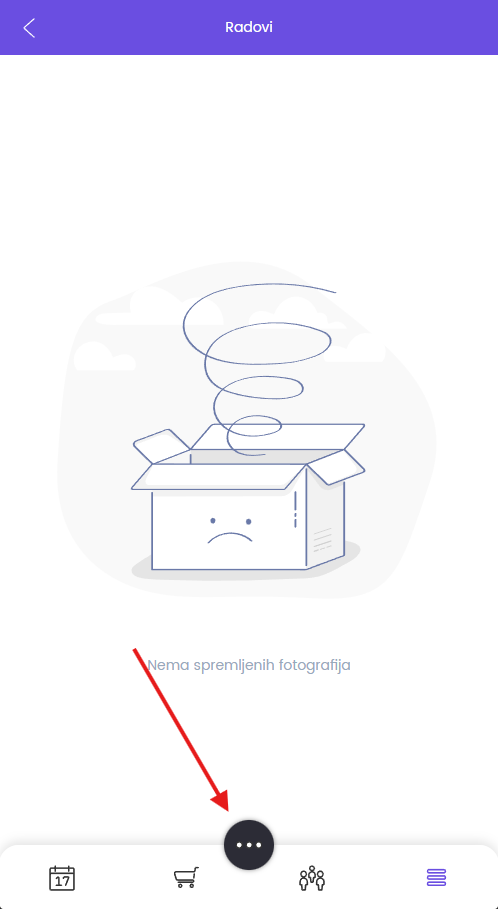
- Select a photo or upload it from your device.
- Enter a Title and, if needed, a Description.
- Select a Related service if needed.
- Turn on Visible online if you want the photo shown on the public profile and have permission to publish any people shown in it.
- Tap Save.
Edit and reorder photos
- Open Main menu > Business > Settings > Gallery > Photo gallery.
- Select Edit on the photo.
- Change its Title, Description, Visible online setting, or Related service.
- Tap Save.
The image file itself cannot be replaced inside an existing photo. Add the new photo, check its display, and then delete the old one by following the related article.
Use the up and down arrows next to a photo to change its position. The new order immediately determines the order in the public gallery.
Related
Updated on: 22/08/2026
Thank you!