
How to connect an employee to a service (mobile)
In this article, you will learn how to connect an employee with the services they provide through the Zoyya partner web app on mobile. This determines which services clients can book with that employee.
PLATFORM_SWITCH: Desktop · Mobile
When should you use this option?
Use it after adding an employee, when the employee starts providing another service, or when they stop providing a service.
Connect an employee with services
- Open the Main menu.
- Under Business, tap Settings, then under Employees and resources, tap Employees.
- Select the employee.
- Open Services.
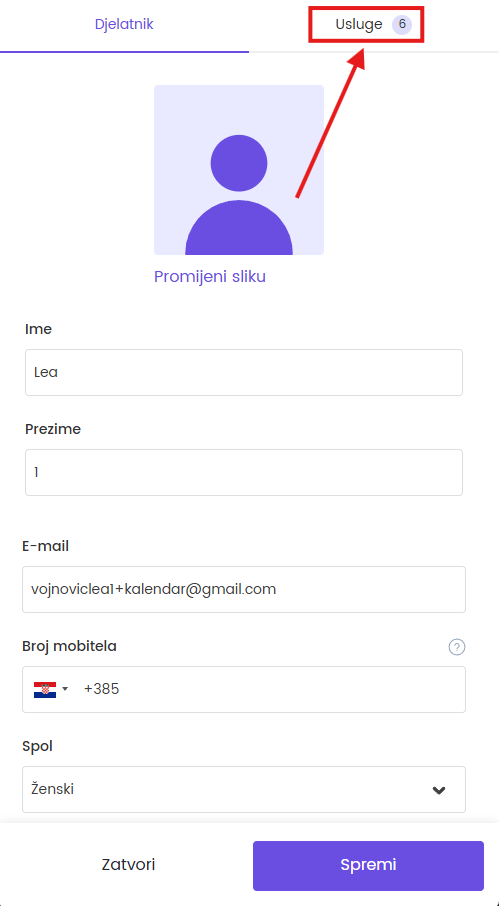
- Select the individual services the employee provides. If they provide every service, select Select all services.
- Tap Save.
After saving, the employee is offered for new bookings of the selected services when the required calendar display and online booking settings are enabled and a schedule is open.
Remove a service from an employee
- Open the same employee and Services.
- Clear the service selection.
- Tap Save.
The employee is no longer offered for new bookings of the removed service. Existing appointments retain that employee and are not cancelled or assigned to another person automatically.
Related
- How to add and edit an employee (mobile)
- How to edit the employee schedule (mobile)
- How to connect a service with employees and resources (mobile)
Updated on: 21/08/2026
Thank you!