
How to add a membership fee (mobile)
In this article, you will learn how to add a membership fee to a client through the partner Zoyya web application on a mobile phone.
The membership fee represents a specific membership that you assign to an individual client based on a predefined type of membership fee. Since the usage rules, duration, limits and price are automatically downloaded from the selected type of membership fee, adding a membership fee only takes a few steps.
PLATFORM_SWITCH: Desktop · Mobile
When to use this option?
Use this option when:
- you sell the membership fee to the client
- you grant the client usage rights according to the existing type of membership fee
- a new membership period begins
- you renew the membership fee of an existing client
Before you start
Before adding the membership fee, it is necessary to create a type of membership fee.
The type of membership fee determines the rules of use, duration, limitations and price, while the membership fee represents the specific membership that you assign to an individual client.
If you haven't created a membership fee type yet, read the article How to add a membership fee type (mobile phone).
Work steps
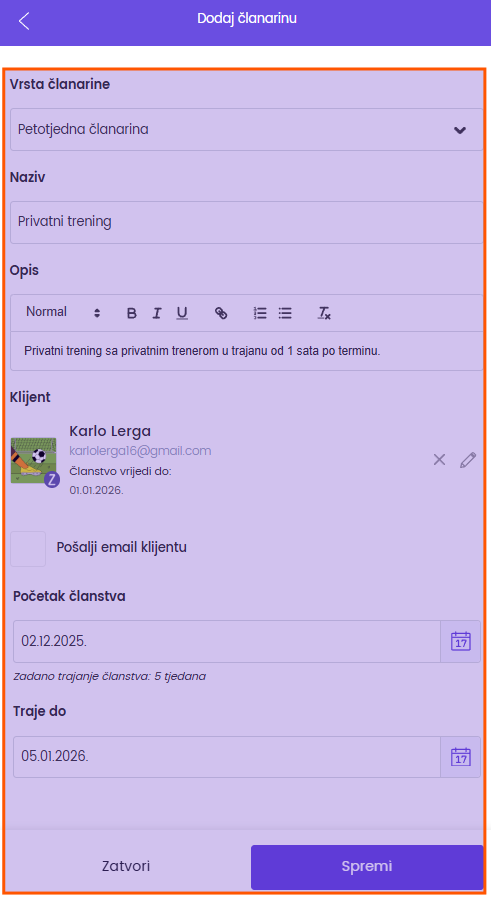
Adding the membership fee
- Open the Main menu.
- Under Sales and loyalty, tap Memberships.
- Tap Add membership fee.
- Select type of membership fee.
- Enter membership fee name.
- Optionally add a description.
- Select the client to whom you are assigning the membership fee.
- Optionally, turn on the option Send e-mail to the client so that the client immediately receives a notification about the new membership fee.
- Select membership start date.
- Review the entered data.
- Tap Save.
The membership fee will be added to the list and immediately ready for use.
After adding the membership fee
By opening the membership fee, you can view:
- client data
- membership fee status
- rules of use
- utilization of the membership fee
- current and future membership periods
Notifications about the expiration of the membership fee
Zoyya can automatically send a notification to the client before the membership fee expires.
You determine the number of days before expiration in:
Settings → Location → Advanced settings → Notification before membership fee expires (days)
The default value is 5 days, but you can adjust it to your business rules.
Frequently asked questions
What is the difference between a type of membership fee and a membership fee?
The type of membership fee determines the rules of use, duration, limitations and price. Membership is a specific membership that you assign to an individual client based on that type.
Do I have to reset the membership fee rules every time?
No. All rules are automatically downloaded from the selected type of membership fee.
Can I send a notification to the client immediately after adding the membership fee?
Yes. When adding the membership fee, turn on the Send e-mail to the client option.
Can I arrange the membership fee later?
Yes. You can open the membership fee, edit data and save changes.
When does the client receive a notification about the expiration of the membership fee?
Automatically, according to the number of days you have set in the location's advanced settings, field Notification before membership fee expires (days).
Connected
- How to add membership fee type (mobile)
- How to add time intervals for memberships
- How to review the membership fee
- How to renew the membership fee
Updated on: 21/08/2026
Thank you!